
Who this is for and what it does
Schedulers and Platform Admins working through the day's appointments.
Steps
Select Appointments in the sidebar.
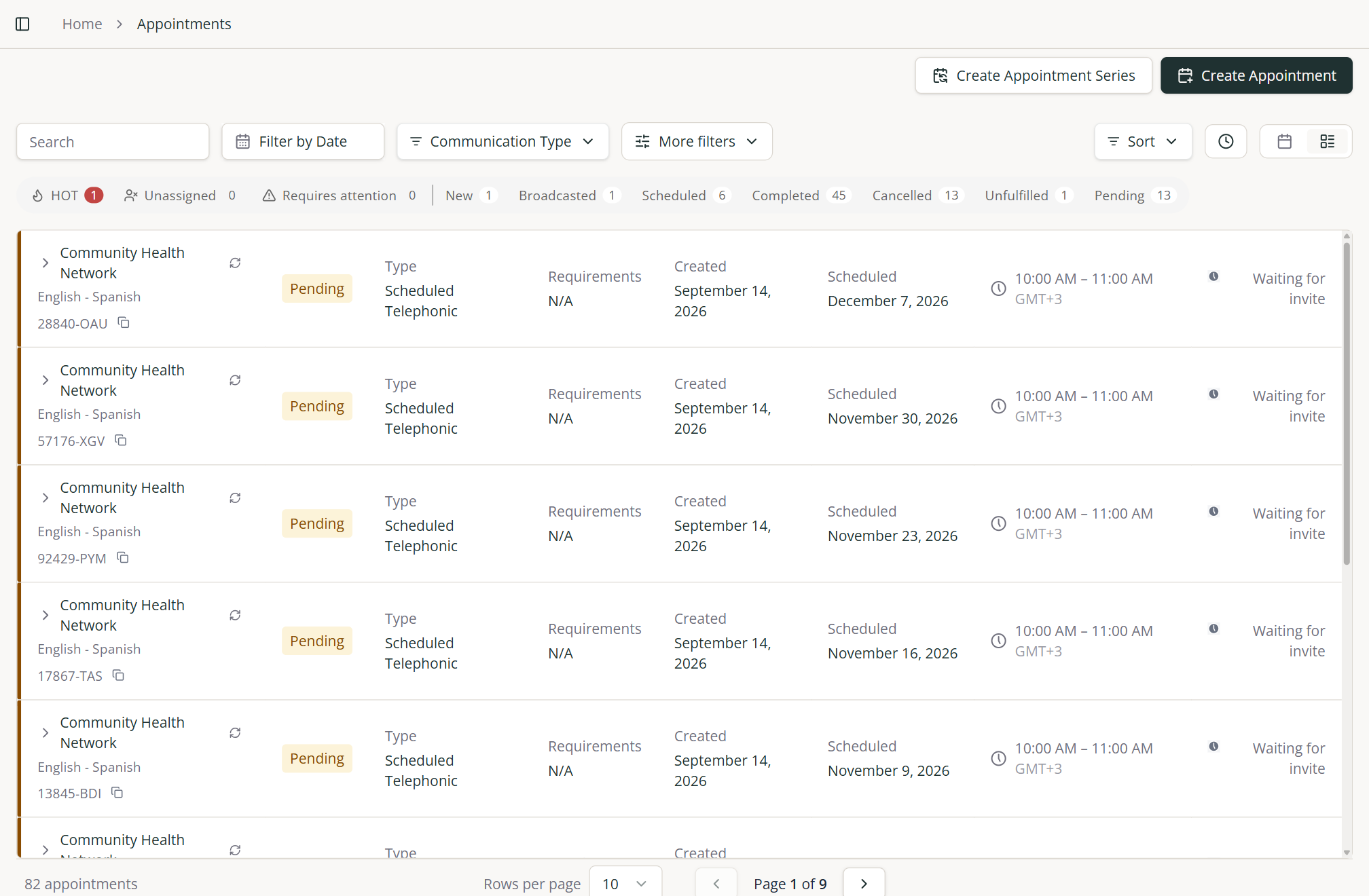
Select a card:
HOT (next 24 hours) or Unassigned (from 24 hours to 5 days ahead) for appointments with no interpreter. See Read the HOT and Unassigned coverage cards.
Requires attention, which comes right after HOT and Unassigned.
A status card, after the divider: New, Broadcasted, Scheduled, Completed, Cancelled, Unfulfilled or Pending (shown when there are any).
Open More filters and choose:
Fulfilled by: Platform or Third Party.
Interpreter assignment: Assigned or Unassigned.
Client, then Requester (it appears once a client is chosen).
Interpreter.
Each filter shows as a chip above the list. Select Clear all to remove them.
To book, select Create Appointment (in the table view) or Create Appointment Series.
What you will see
The list works as it does for clients, with the same search, sort, date range, communication type and languages, and a calendar view. Choose 10, 25, 50, 100 or 200 under Rows per page; the foot shows how many appointments match, for example "24 appointments". Series show an expand arrow and a recurring icon, and the interpreter's name links to their page.
Platform Admins can export the calendar view: switch to the calendar and select Export.
Things that most often look wrong, and why:
The Requester filter is missing. Choose a Client first.
The Pending card is missing. No appointments are pending.
Available since March 2026. Updated in Release 10.19.2026. Updated in Release 11.23.2026.
Last updated 24 November 2026