
Who this is for and what it does
Platform Admins use this to control how long a client's scheduled calls stay open. It is one switch per client, and it changes every scheduled call for that client:
On: a scheduled call can be joined by any participant for the whole length of the appointment.
Off: a scheduled call ends once nobody has been in it for more than two minutes.
Switch it on for a client whose participants tend to join at different times, or leave and come back, so that they are not left with a call that has already ended.
Before you start
You need the Platform Admin role.
Steps
Open Clients, then open the client.
Under Client settings, select Settings.
Under Calls, switch Scheduled-Window Booking on or off.
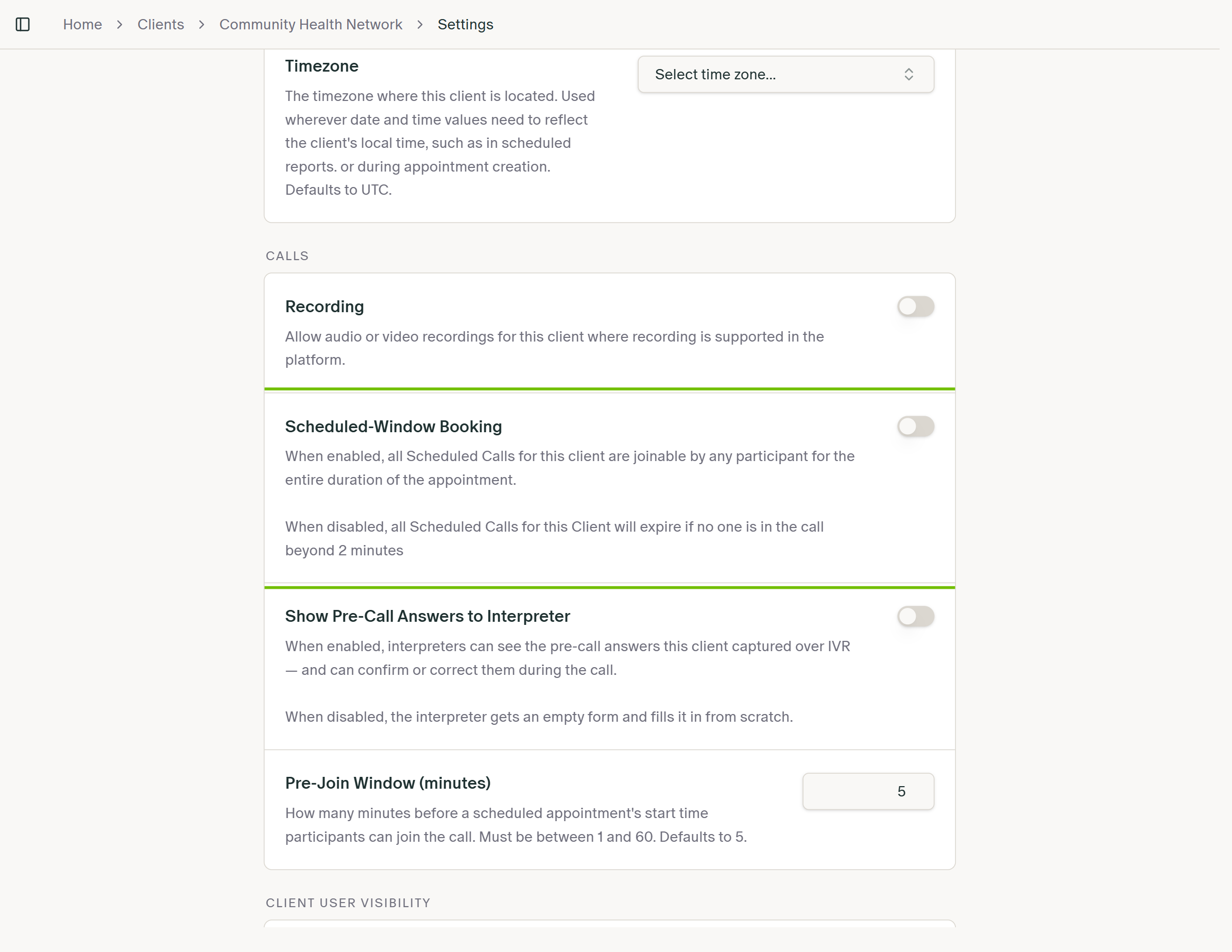
What you will see
The switch changes position and the setting is saved at once. No confirmation message appears.
Things that most often look wrong, and why:
A participant could not get back into a scheduled call. With this setting off, the call had ended because nobody was in it for more than two minutes. Switch it on for that client if their calls need to stay open for the whole appointment.
Nothing told me it saved. That is expected on this page. If a save fails, a message reads "Failed to update client setting".
Available since Release 08.20.2026
Last updated 24 September 2026