
Who this is for and what it does
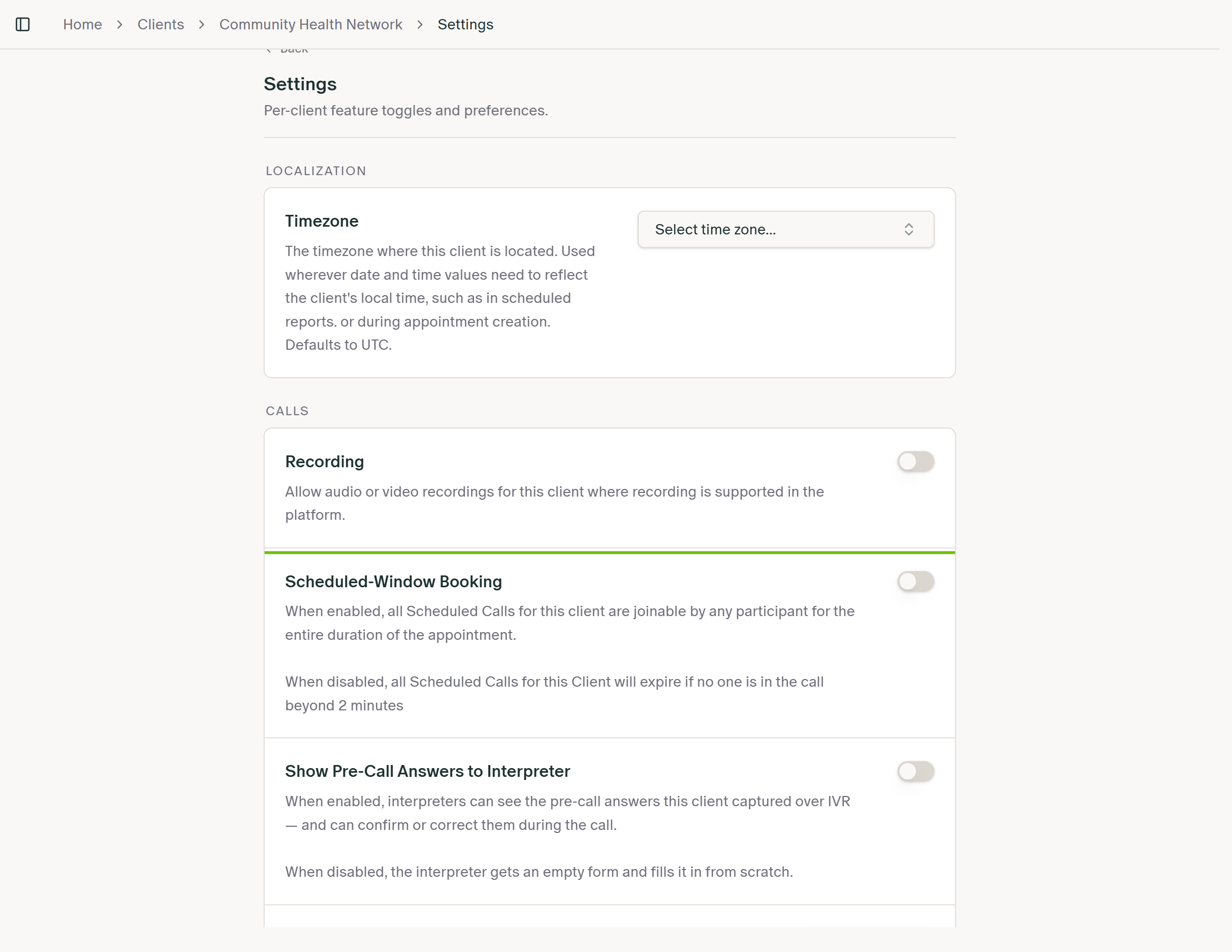
Platform Admins use this to decide whether calls for one client can be recorded. With Recording on, audio or video recording is allowed for that client wherever the platform supports recording. With it off, their calls are not recorded. Other clients are not affected.
Before you start
You need the Platform Admin role.
Check that recording is allowed under the client's agreement before you switch it on.
Steps
Open Clients, then open the client.
Under Client settings, select Settings. The page reads "Per-client feature toggles and preferences."
Under Calls, switch Recording on or off.
What you will see
The switch changes position and the setting is saved at once. No confirmation message appears. While the save is running, every control on the page is briefly greyed out.
Things that most often look wrong, and why:
Nothing told me it saved. That is expected. This page saves silently. If a save fails, a message reads "Failed to update client setting" and the switch shows the setting as it was before.
The whole page went grey for a moment. A save was in progress. The controls come back when it finishes.
Recording is on, but a call was not recorded. The setting allows recording only where the platform supports it. It does not turn recording on for kinds of call that cannot be recorded. For a phone call, the phone number's own recording setting must also be on.
Recording is off, but older recordings can still be played. That is expected. Turning Recording off stops new recordings; it does not hide ones already made.
Available since Release 06.15.2026
Last updated 24 September 2026