
Who this is for and what it does
Platform Admins who need to keep on-demand calls flowing when Connexus can't route them to its own interpreters. Use it only while it is needed.
Steps
Open the menu under your name at the top left and choose Platform Settings.
Under Call routing, turn on Send all calls to backstop.
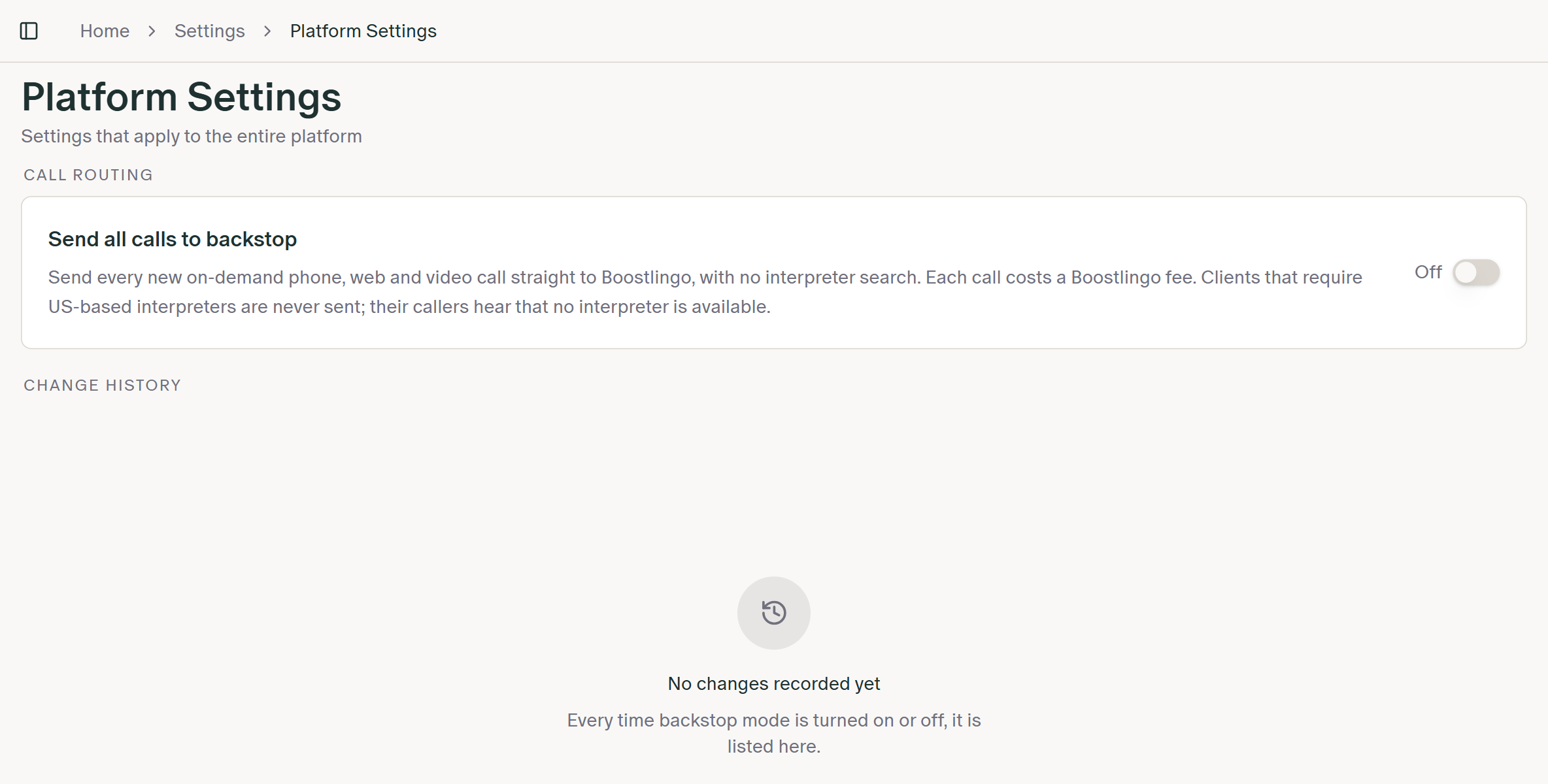
Read the confirmation and select Turn on backstop. Select Cancel to leave it as it was.
To go back to normal routing, turn the switch off and select Turn off backstop.
What you will see
A message reads "Backstop mode updated" and "The change applies to the next new call." Calls already in progress are not moved.
While backstop is on, Platform Admins see Backstop on and the time it was turned on in the page header, and the switch shows who turned it on and when. Select the header label to open Platform Settings.
Change history lists each time backstop was turned on or off, by whom and when.
Clients that require US-based interpreters are never sent to backstop interpreters. While backstop is on, their callers hear that no interpreter is available.
Things that most often look wrong, and why:
"The current value could not be loaded." Connexus could not read the setting, so the switch is disabled. Reload the page.
Online interpreters are not getting on-demand calls. Backstop is on. Check the header and turn it off when routing is working again.
Available since Release 10.19.2026
Last updated 28 October 2026