
Who this is for and what it does
Platform Admins setting up a client that sends its own messages to guests or new users.
Steps
Open the client. Under Client settings, select Notification Settings.
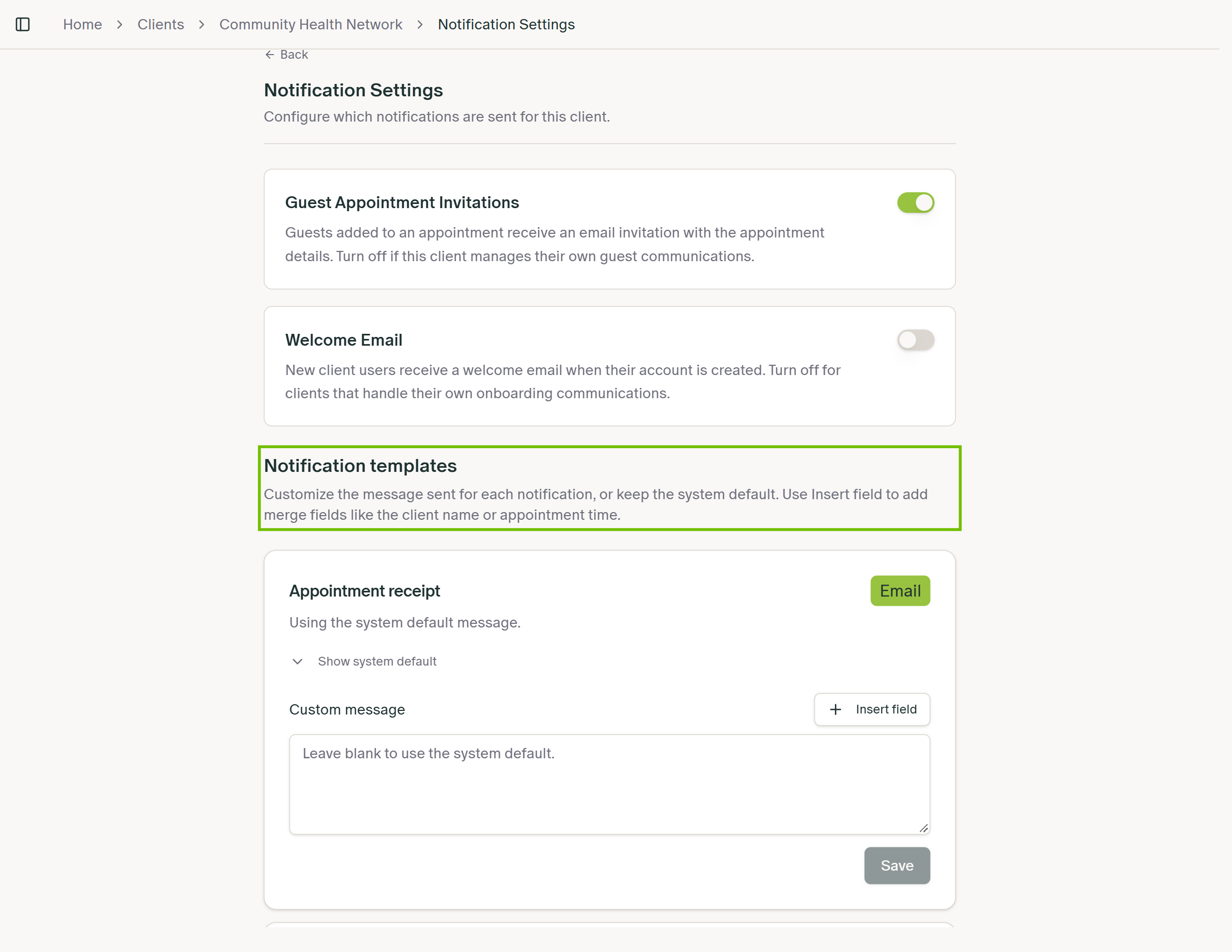
Turn the switches on or off:
Guest Appointment Invitations: guests added to an appointment get an email invitation with the appointment details. Turn it off if the client contacts its guests itself.
Welcome Email: new client users get a welcome email when their account is created. Turn it off if the client handles its own onboarding.
What you will see
The switch moves and the change is saved; there is no Save button and no confirmation message. The email templates for this client are further down the same page: see Edit a notification template for a client.
Things that most often look wrong, and why:
"Failed to update notification setting". The change was not saved. Try again.
Available since March 2026
Last updated 16 October 2026