
Who this is for and what it does
Platform Admins use this when a client's rate card covers more languages than the contract does, and one of those languages must not be bookable. A client whose rate card uses the all-languages option is offered every language Piedmont Global supports, which can include a language nobody is contracted to deliver for them. Excluding it removes it from that client's lists without touching the rate card and without affecting any other client.
It does not change what the client is charged, it does not remove the language from Connexus, and it does not cancel or alter anything already booked.
Before you start
- You need the Platform Admin role.
- Know which client and which language, and that the exclusion is agreed with whoever owns the account. A language disappearing from a client's booking form is visible to their users immediately and with no explanation on their side.
- The exclusion list starts empty on every client, so nothing is excluded anywhere until someone adds it.
Steps
Open Clients, then open the client.
Under Client settings, select Excluded Languages. The page reads "Languages on this list are hidden from the scheduled appointment form and on-demand widget for this client."
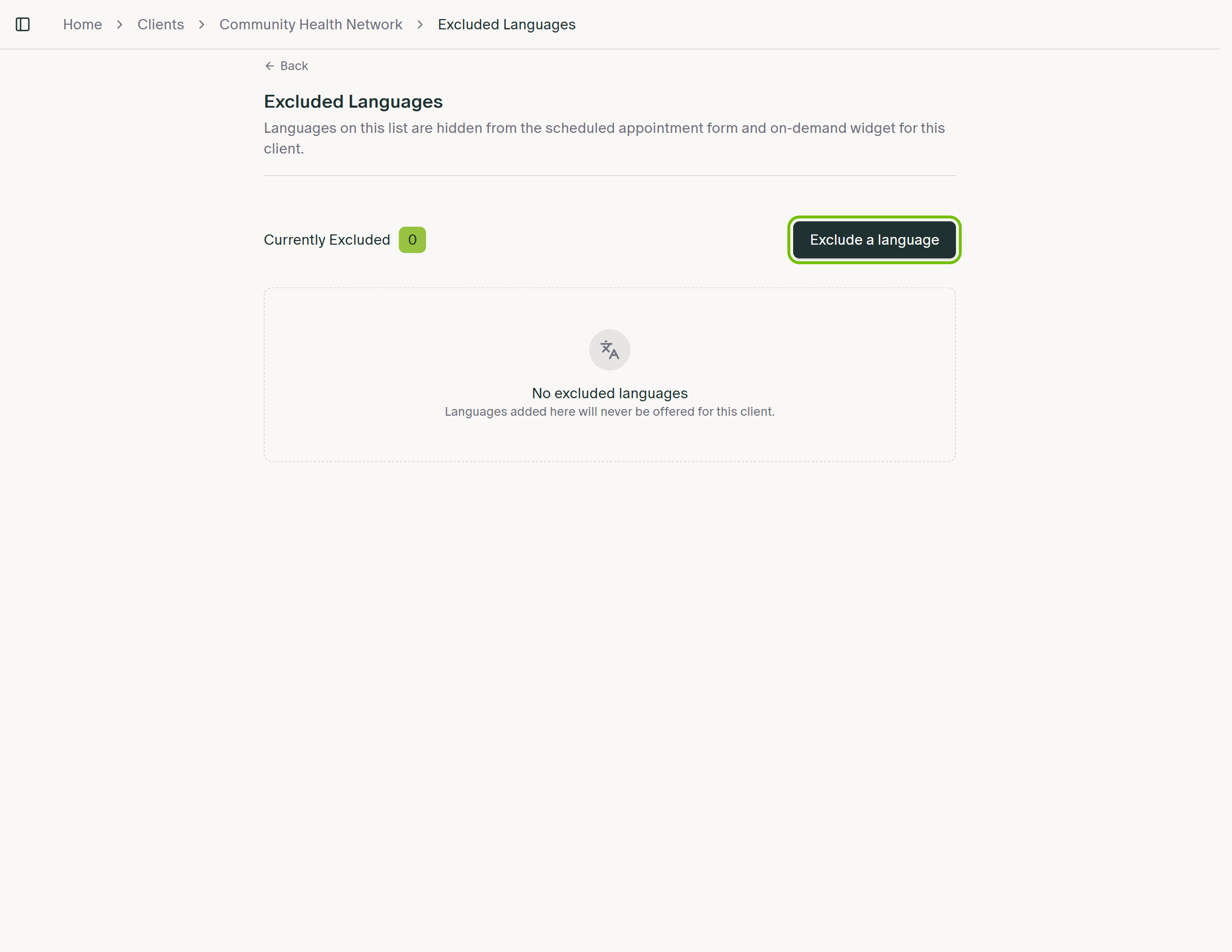
Select Exclude a language.
Open the Language list, which reads Select a language until you choose one, and pick the language. Languages already on the list do not appear, so you cannot add the same one twice.
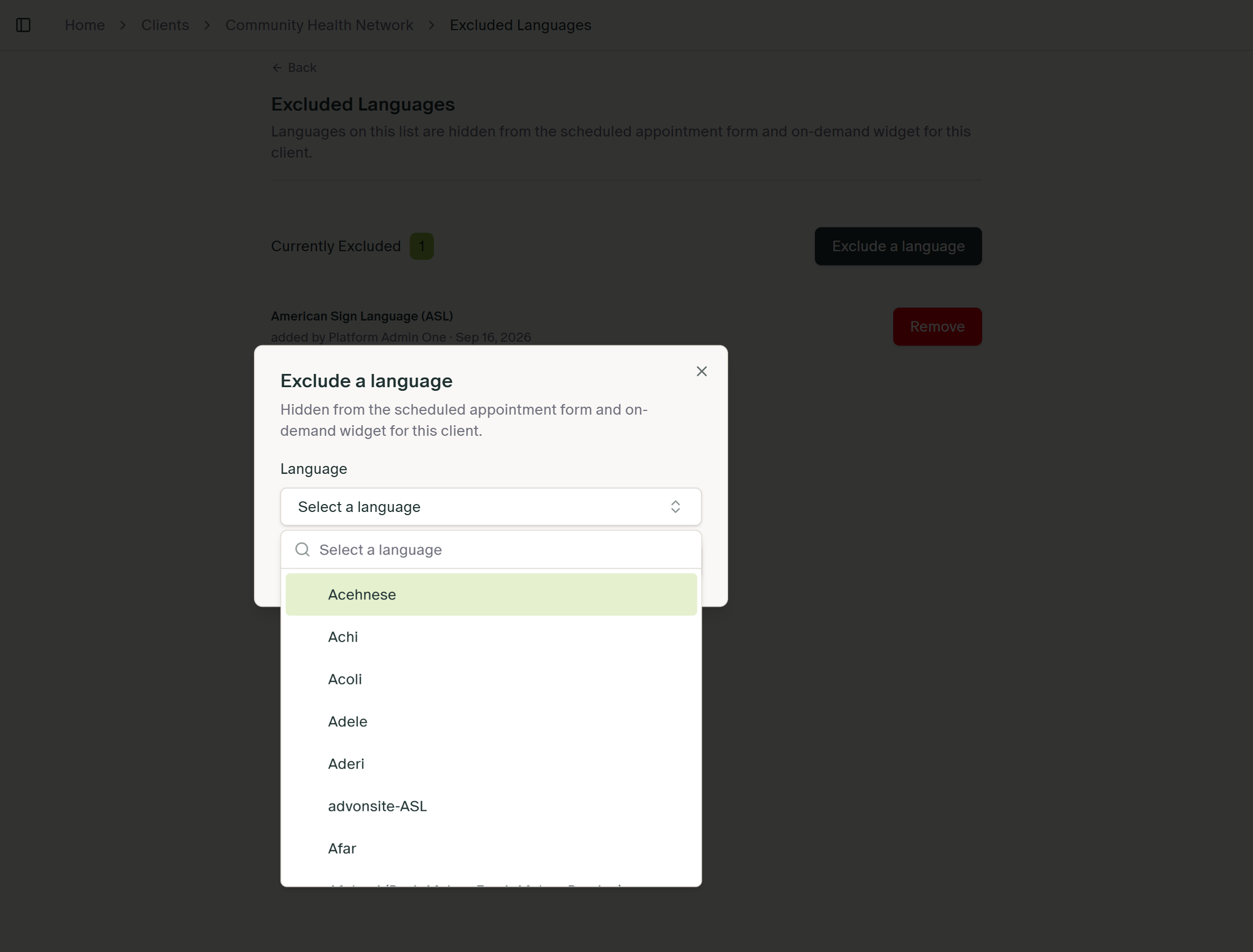
Select Add to list. Select Cancel instead to close without adding anything.
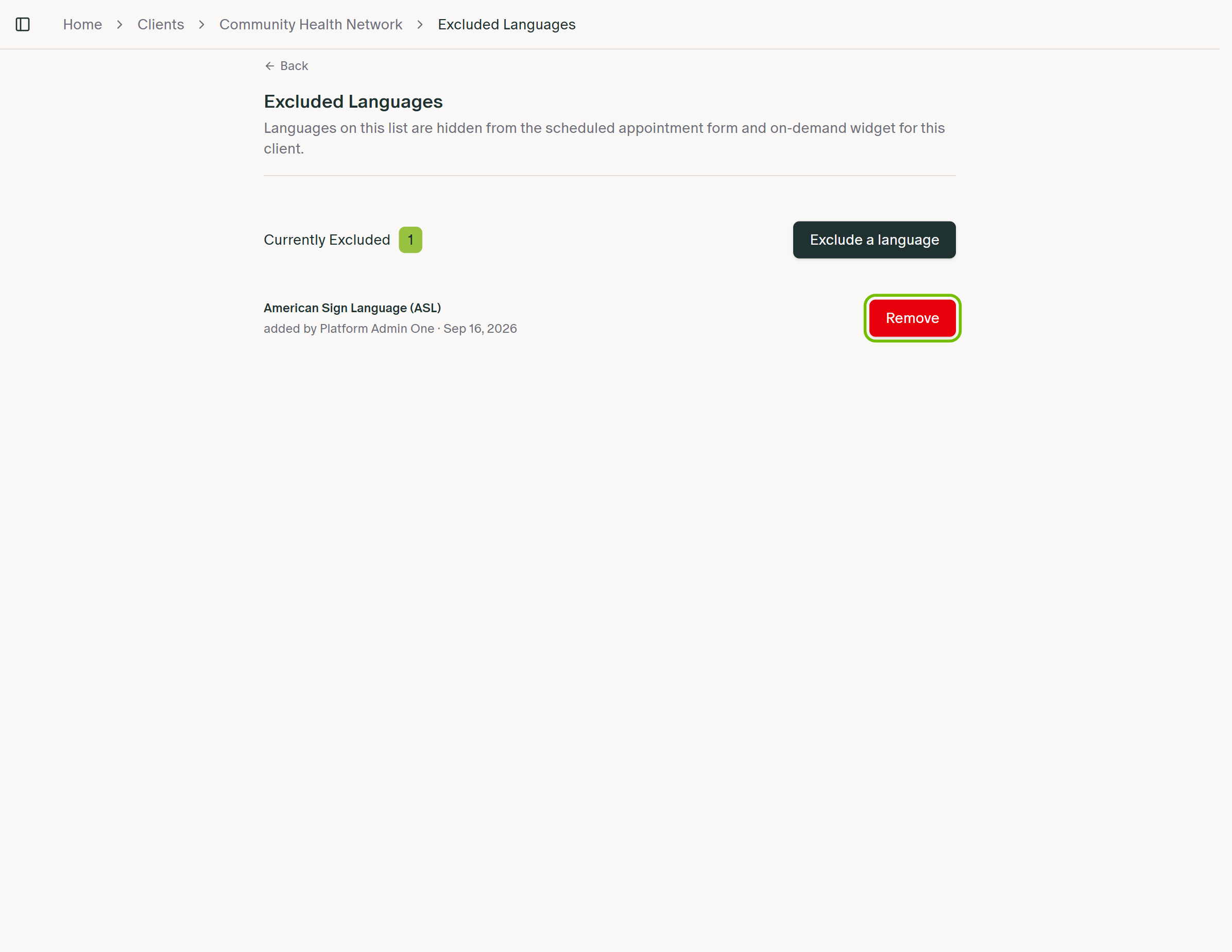
To take a language off the list, select Remove on its row, then Remove again in the confirmation.
What you will see
The language appears under Currently Excluded, and the count beside that heading goes up by one. Each entry shows the language with its abbreviation where it has one, for example American Sign Language (ASL), then the date it was added and, in most cases, who added it. The name comes from that person's user account, so if the account is later deleted the row keeps its date and loses the name. Do not rely on it as a complete audit trail. Before anything is on the list the page reads No excluded languages, with the line "Languages added here will never be offered for this client."
Removing a language asks you to confirm first. The confirmation is titled Remove followed by the language name, and it tells you that the language will become available again on that client's scheduled appointment form and on-demand widget.
On the client's side, the language is gone from their lists the next time a page loads. No deploy, no cache clearing and nothing from engineering is needed. It disappears from every place on the web that reads the client's languages: the create appointment form for Scheduled Telephonic, Scheduled Video Interpreting, On-Site and Third Party Platform, and the on-demand widget for On-Demand Telephonic and On-Demand Video Interpreting. Removing the exclusion puts it back the same way.
Things that most often look wrong, and why:
- A requester still sees the language. Their page has not reloaded since the change. The exclusion applies on the next page load, not to a page already open.
- A request in the excluded language is refused rather than simply unavailable. That is intended. If a request reaches Connexus naming an excluded language, from a form left open or from an integration, it is refused with a message and nothing is created. Nothing is half booked.
- An appointment already exists in the language you just excluded. It is unaffected on purpose. Its detail, edit and call screens all keep working, and it goes ahead as booked. Excluding a language governs new requests only, so cancel an existing appointment yourself if it should not go ahead.
- The exclusion covers the phone as well, so you do not need a second control for callers. A caller who asks for an excluded language hears a message and the call then ends, the language is reported unavailable when the system checks, it is dropped from the spoken menus, and a toll-free number whose default language is excluded falls back to the standard menu. Callers are disconnected rather than offered another route, so expect them to call back or contact the client directly.
- The language is still offered for a different client. Exclusions are per client. Every other client is untouched, which is the point.
Available since Release 09.21.2026
Last updated 24 September 2026