
Who this is for and what it does
Platform Admins use this to set how early people can join a client's scheduled calls. The pre-join window is how many minutes before a scheduled appointment's start time participants can join the call. It applies to every scheduled call for that client and to no other client. The default is 5 minutes.
Before you start
You need the Platform Admin role.
Decide the number of minutes. It must be a whole number from 1 to 60.
Steps
Open Clients, then open the client.
Under Client settings, select Settings.
Under Calls, find Pre-Join Window (minutes) and type the number of minutes.
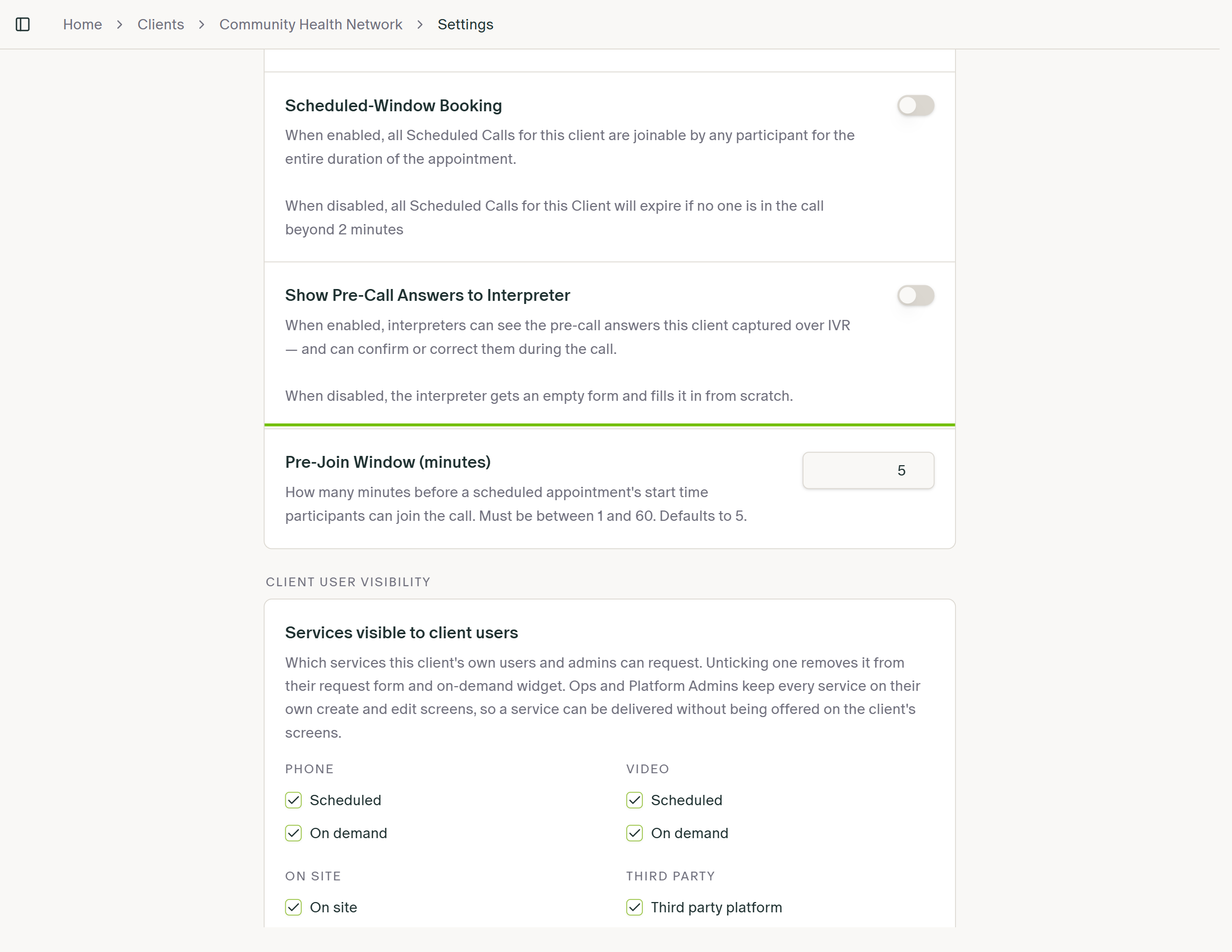
Press Enter, or click anywhere outside the box, to save. Press Esc instead to put back the number that was there.
What you will see
The new number stays in the box and is saved. No confirmation message appears.
Things that most often look wrong, and why:
The number went back to what it was. What you typed was outside 1 to 60, or was not a number, so it was not saved. No error is shown. Type a whole number from 1 to 60 and save again.
I typed a decimal and a different number was saved. Only whole minutes are kept. A decimal is cut to the whole number in front of it, so 7.9 is saved as 7.
I changed it and nothing happened. The box saves only when you press Enter or click away. Until then the old value still applies.
Nothing told me it saved. That is expected on this page. If a save fails, a message reads "Failed to update client setting".
Available since Release 07.17.2026
Last updated 24 September 2026