
Who this is for and what it does
Platform Admins use this to record the time zone a client is in. Connexus uses it wherever dates and times need to reflect the client's local time, such as in scheduled reports and when appointments are created. New clients must have one. New clients get a suggested time zone from their billing address when they are created. An older client may have none: its page shows Not set, and its scheduled reports are skipped until a zone is chosen. In Release 10.05.2026, older clients without a zone whose address could be located were given one worked out from it, and the rest show Not set, so check that the zone is right.
Before you start
You need the Platform Admin role.
Know where the client is based.
Steps
Open Clients, then open the client.
Under Client settings, select Settings.
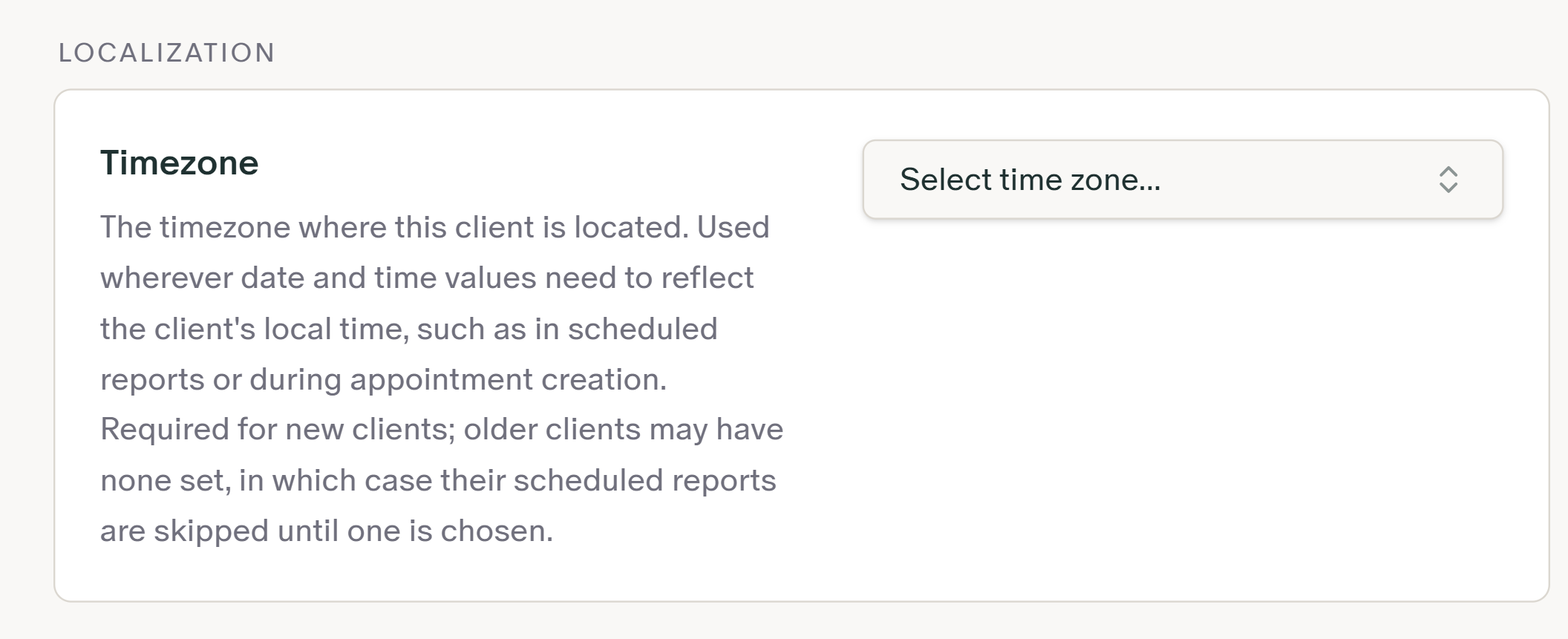
Under Localization, open Timezone and choose the client's time zone.
What you will see
The chosen zone shows in the box and is saved at once. No confirmation message appears.
Things that most often look wrong, and why:
The client's page shows Not set, or its scheduled reports have stopped. No time zone is set, and scheduled reports are skipped until one is. Choose one here. The box reads Select time zone... until you do.
The time zone looks wrong. It may have been worked out from the client's address in Release 10.05.2026. Choose the right one here.
Nothing told me it saved. That is expected on this page. If a save fails, a message reads "Failed to update client setting".
Available since March 2026. Not set state since Release 10.05.2026. Updated in Release 10.19.2026.
Last updated 19 October 2026