
Who this is for and what it does
Platform Admins use this to see who changed an interpreter's details and when, for example to check when an email address or a language pair changed, or when an interpreter was deactivated.
Before you start
You need the Platform Admin role.
Steps
Open Interpreters and open the interpreter.
Select ... at the top of the page, then View history.
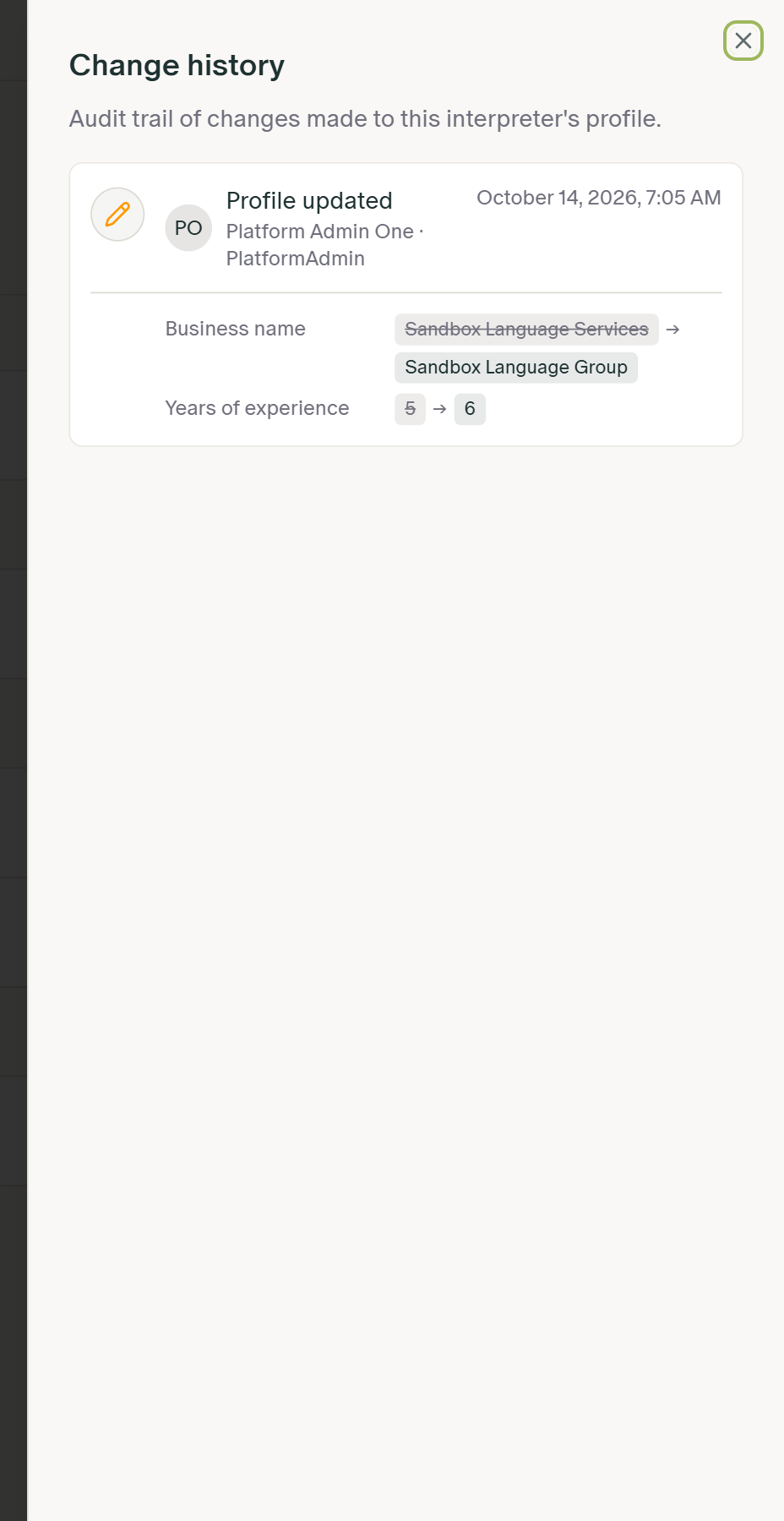
What you will see
Each entry shows who made the change, with their role, or a system icon if Connexus made it, and the date and time. Entries read:
Profile updated: each changed field with the old value struck through and the new value after the arrow. Address, language pairs and availability changes are listed here too, with + for something added.
Interpreter activated or Interpreter deactivated: the status before and after.
The newest change is at the top, and the whole history loads at once. An entry is added only when something actually changed, so saving without a change adds nothing.
Things that most often look wrong, and why:
"No changes recorded yet." No changes to this profile have been recorded.
A rate change is not listed. Rates are recorded separately, not in this history.
A client exclusion is not listed. Exclusions belong to the client, not to the interpreter.
There is no View history. Only Platform Admins can open it.
Available since March 2026
Last updated 14 October 2026