
Who this is for and what it does
Schedulers and Platform Admins checking whether an interpreter can take work, or following up on missed on-demand calls.
Steps
Open Interpreters and select the interpreter.
On the overview, under Availability, select:
Availability to see Work Days and Work Hours. Platform Admins can select Edit to change them.
On-Demand Activity for their on-demand history.
On the on-demand page, choose a tab:
Session history: each period the interpreter was Online, Busy, Paused, had an Unexpected disconnect, or was Offline, with start, end and duration. Choose Today, Last 7 Days or Last 30 Days.
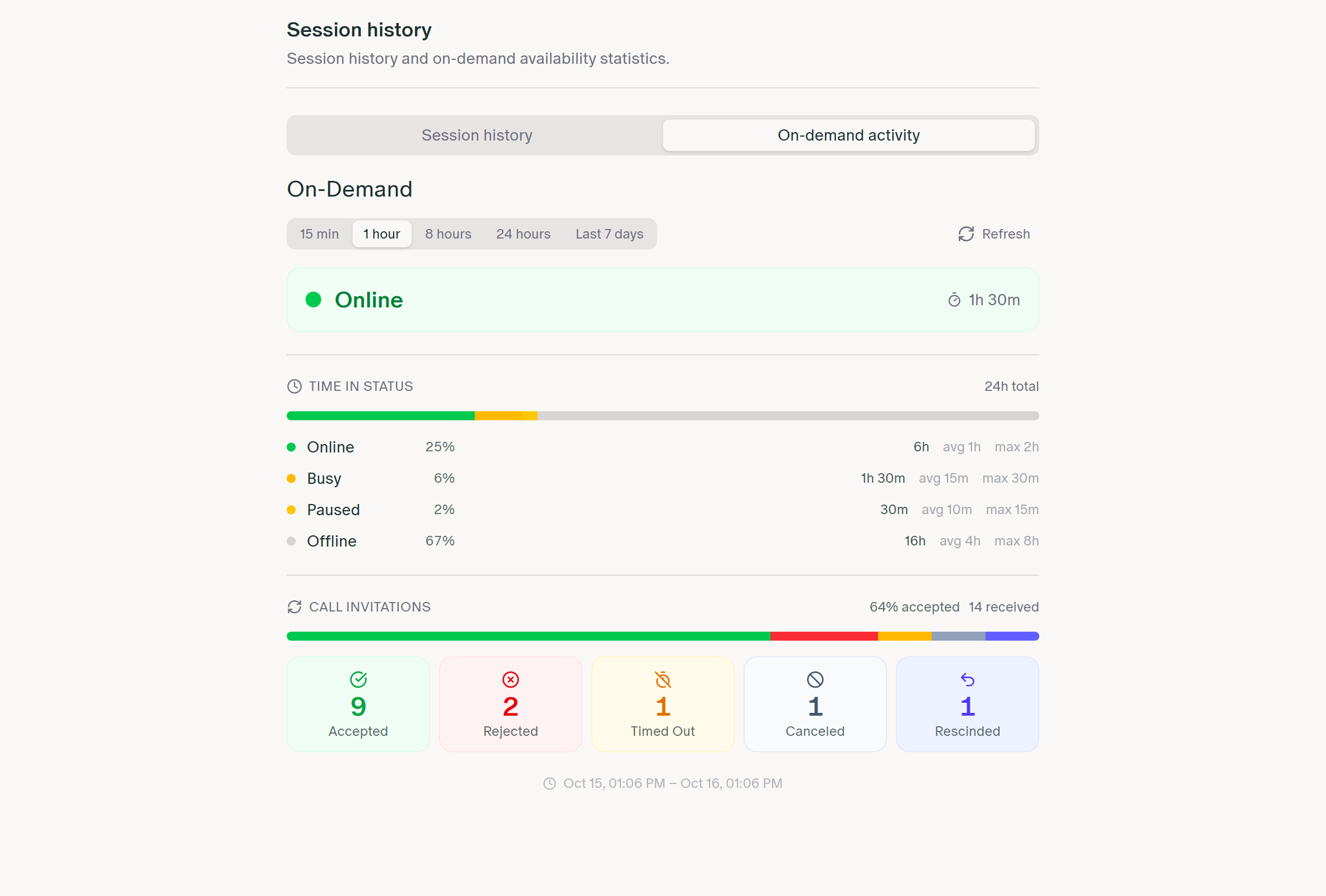
On-demand activity: their current status, the time spent in each status, and their call invitation results, for 15 min, 1 hour, 8 hours, 24 hours or Last 7 days.
What you will see
Under Call Invitations, five tiles count what happened to the calls offered: Accepted, Rejected, Timed Out, Canceled (the caller hung up or the request was withdrawn) and Rescinded (someone else took the call first). Hover over a tile for its meaning.
A period still running shows no end time and a duration that keeps counting.
Things that most often look wrong, and why:
"Not registered for on-demand". The interpreter has not signed in to take on-demand calls yet. Statistics appear once they do.
"No session history found". Nothing was recorded for the dates chosen. Pick a longer range.
"Could not load statistics". Select Try again.
Available since March 2026. Call Invitations results since Release 07.27.2026.
Last updated 16 October 2026