
Who this is for and what it does
Platform Admins use the Call Basics report to get call data for a date range into a file, for example for the monthly hand-off to accounting. It is also the way to export calls: the Call Logs screen has no export. Schedulers cannot open Reports.
Before you start
You need the Platform Admin role.
Steps
Open Reports and select Call Basics Reports.
Select Generate Report.
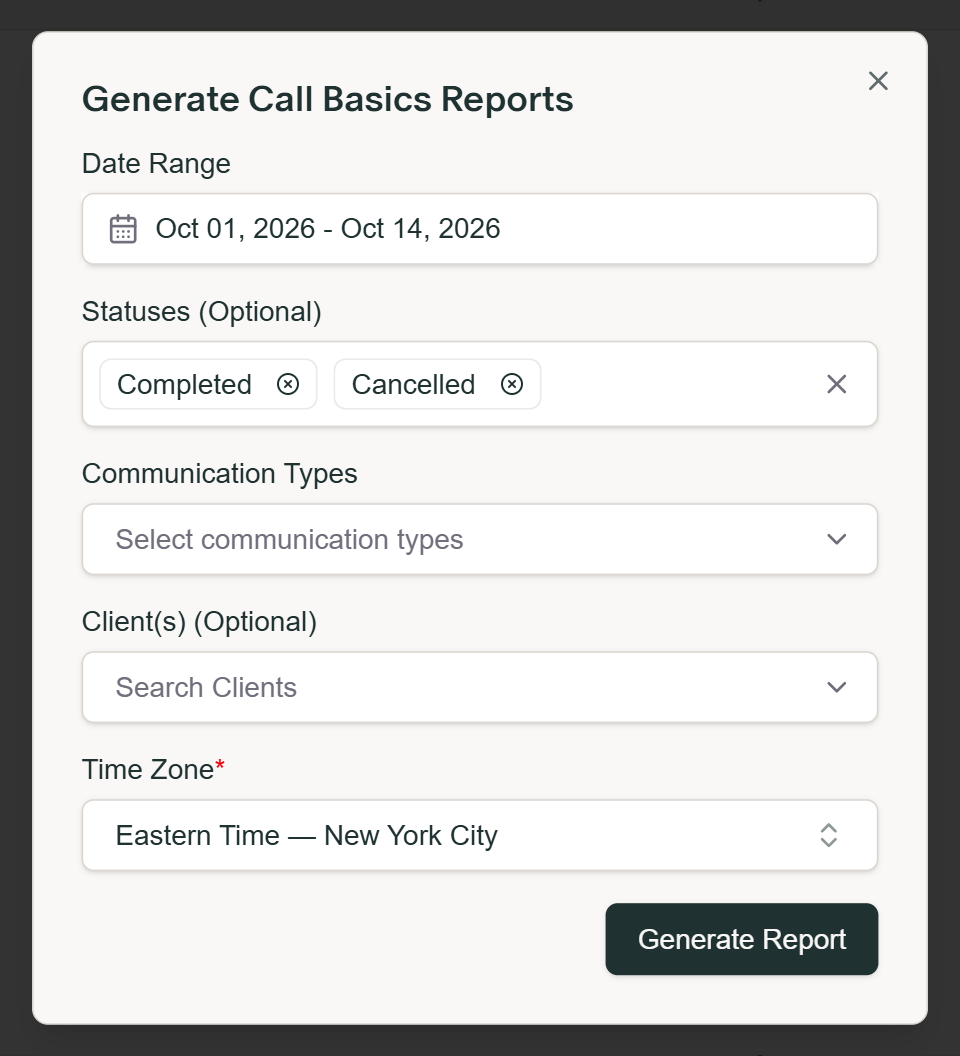
Set the Date Range. It starts as the month to date.
Under Statuses (Optional), keep Completed and Cancelled or change them. Clear them all to include every status.
Under Communication Types, choose the call types, or leave it empty for all.
Under Client(s) (Optional), choose up to 100 clients, or leave it empty for all.
Check Time Zone. It starts as your browser's time zone.
Select Generate Report.
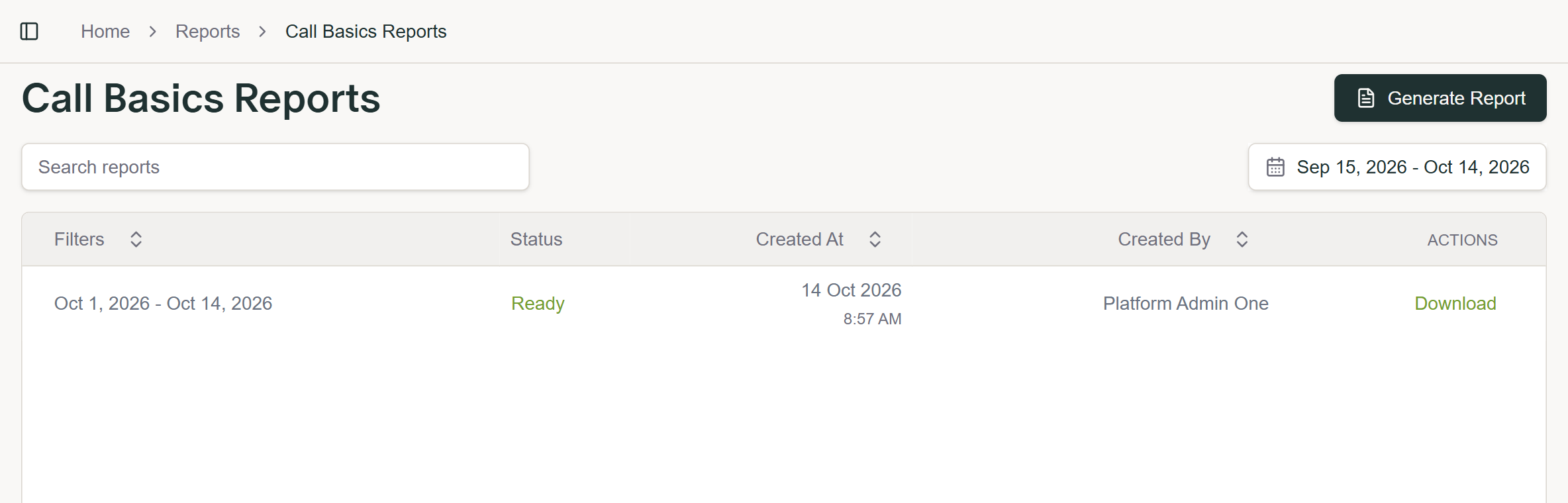
When the report's Status reads Ready, select Download. The file opens in a new tab.
What you will see
A message reads "Report request submitted" and "Report will be available in a short while." The report appears in the list as Generating and the list refreshes by itself until it is Ready.
Hover over a report's Filters to see the dates, statuses, types, clients and time zone it was run with. Use Search reports to find a report by who created it, and the date filter to see reports created in a period.
The Reports page also has Revenue Summary, Interpreter Earnings, Invoice Status and Client Invoice Export reports, which are about billing.
Things that most often look wrong, and why:
The report says Failed. Run it again. If it fails again, report it to the product team with the filters you used.
The download did not open. Your browser may have blocked the new tab. Allow pop-ups for Connexus and select Download again.
Generate Report does nothing. Check that a Time Zone is chosen.
The report has cancelled appointments in it. Cancelled is included by default. Remove it under Statuses if you do not want it.
Available since March 2026
Last updated 14 October 2026