
Who this is for and what it does
Platform Admins use this to store the contract number Ops and finance track for a client. The number is included in the client's invoice data, so invoicing further down the line can match that client's invoices to their contract. Leave it blank until a contract number has been assigned.
Before you start
You need the Platform Admin role.
Have the contract number to hand. It can be up to 64 characters.
Steps
Open Clients, then open the client.
Under Client settings, select Settings.
Under Billing, type the number into Client Contract Number. Once you start typing, Cancel and Save appear.
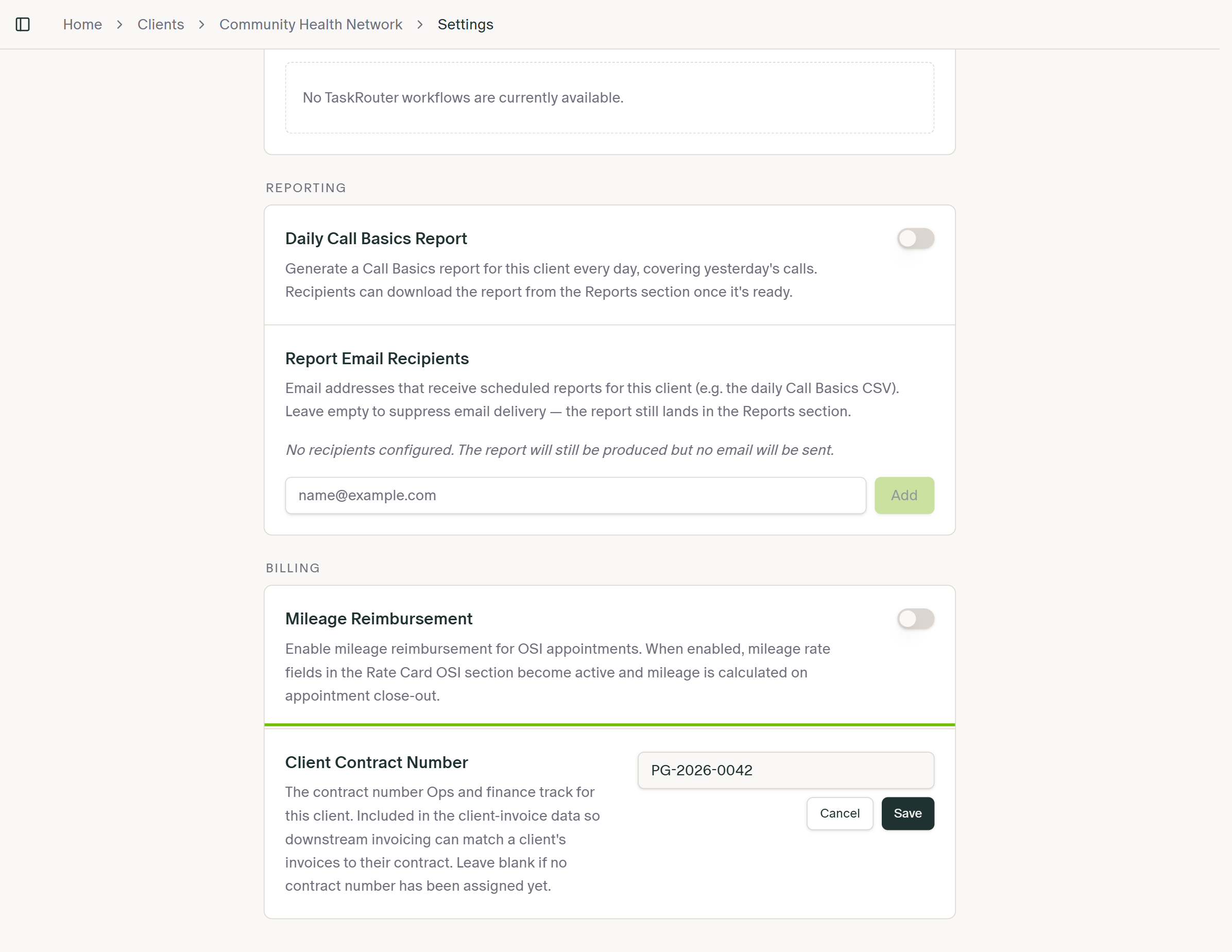
Select Save, or press Enter. Select Cancel, or press Esc, to put back the number that was there.
To remove a contract number, clear the box and select Save.
What you will see
The buttons disappear and the number stays in the box, saved. No confirmation message appears. Spaces at the start or end of what you typed are removed before it is saved.
Things that most often look wrong, and why:
I typed the number, clicked away, and it did not save. This box does not save when you click away. Select Save or press Enter. This is different from the pre-join window box on the same page, which does save when you click away.
I cannot type any more. The number is limited to 64 characters.
The number went back to what it was after I saved. The save failed. A message reads "Failed to update client setting" and the box puts back the saved value. Try again.
Available since Release 09.01.2026
Last updated 24 September 2026