
Who this is for and what it does
Platform Admins use Call Logs to look up video and phone calls: who took them, when, how long they waited and how long they lasted. Onsite and Third Party Platform appointments are not in Call Logs. Schedulers cannot open Call Logs.
Before you start
You need the Platform Admin role.
Steps
Open Call Logs. Choose the On Demand or Scheduled tab.
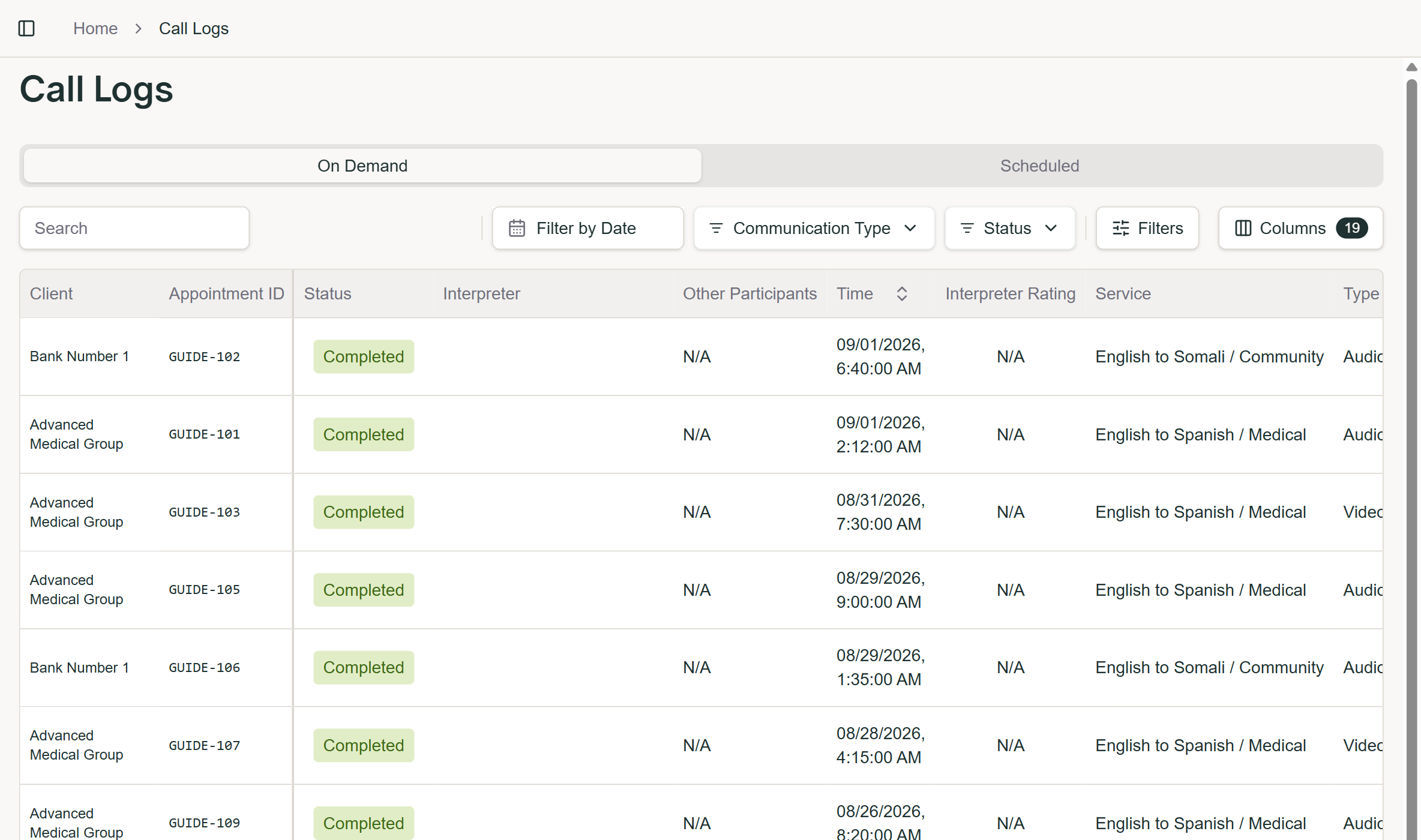
To narrow the list:
Type in Search to find an appointment ID or a participant's name.
Select Filter by Date and choose a range, for example Last 7 Days or Last Month.
Choose Communication Type (Video or Audio) or Status (Completed or Cancelled).
Select Filters for Client, Interpreter, Fulfilled by (Platform or Third Party), Duration (minutes) and From language or To language. Clear all removes them.
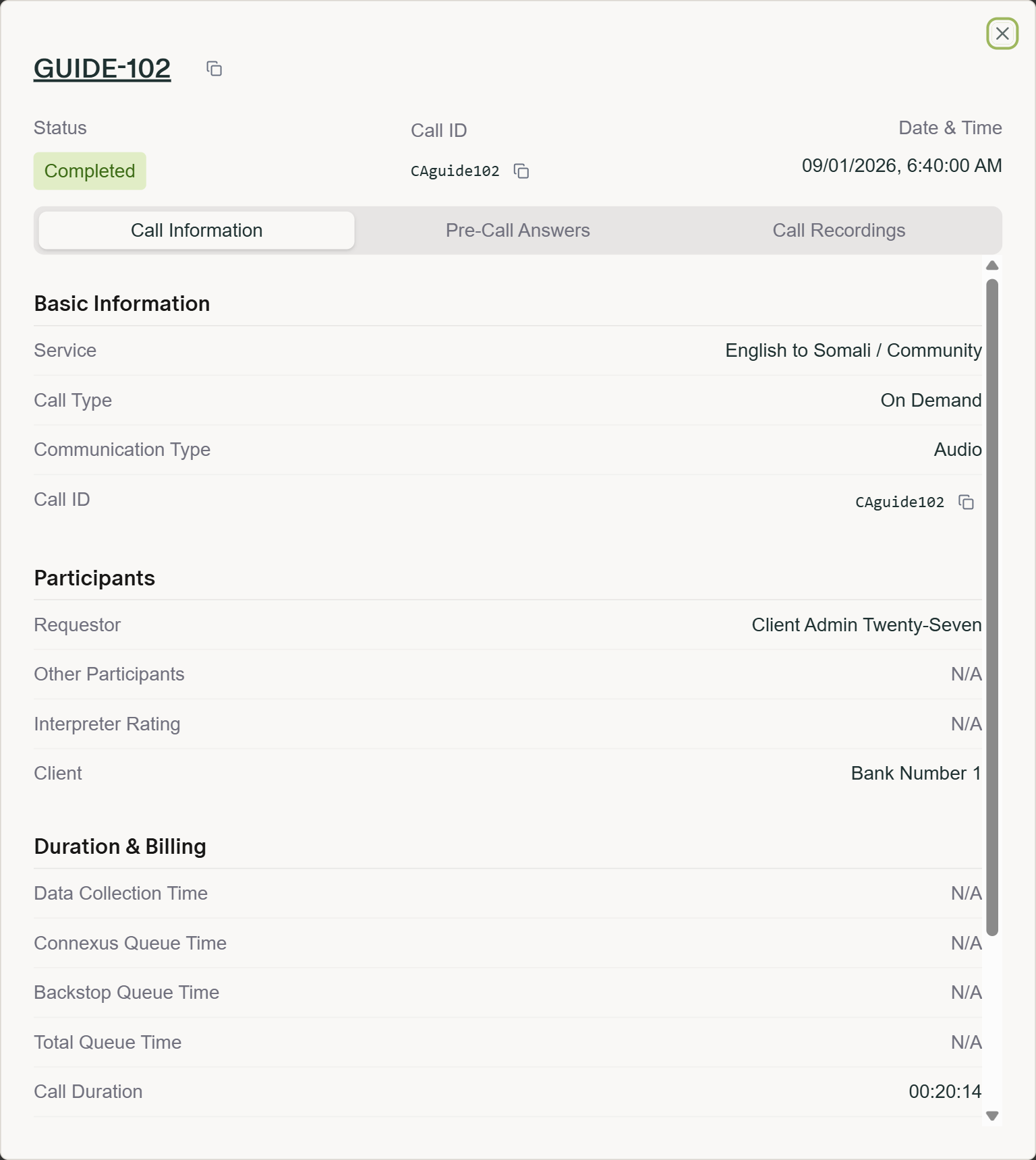
Select a row to open the call's details.
To choose which columns show, use the columns panel at the right end of the toolbar. Client and Appointment ID always show.
The filters are kept in the page address, so you can bookmark or share a filtered view.
What you will see
On Demand shows, among others, Client, Appointment ID, Status, Interpreter, Other Participants, Time, Interpreter Rating, Service, Type, Call ID, Data Collection Time, Connexus Queue Time, Backstop Queue Time, Total Queue Time and Call Duration.
Scheduled shows Subject, Requestor Joined, Interpreter Joined and Scheduled Duration instead of the queue times, rating and Call ID.
Cancelled scheduled video and phone appointments are listed on the Scheduled tab, even when no call took place. Choose Cancelled under Status to see only those. On a cancelled row, Scheduled Duration shows the booked length, Call Duration shows 00:00:00, and the row never shows Processing.
Call Duration is the time the client and interpreter were both in the call. Processing means no duration has been recorded yet for a call that started less than an hour ago. Times show in your browser's time zone. Both tabs also have billing columns.
The detail panel has three tabs: Call Information, Pre-Call Answers (the caller's answers, for calls that have them) and Call Recordings (play the recording, or View to open it on its own page in a new tab).
Things that most often look wrong, and why:
An onsite or Third Party Platform appointment is missing. Call Logs lists video and phone calls only.
"No calls match your current filters." Widen the date range or clear the filters.
"No recordings were found for this appointment." Recordings can take a few minutes to appear. Refresh the page, and check that recording is on for the client.
I need the calls in a file. Call Logs has no export. Run a Call Basics report instead.
Available since March 2026. Cancelled scheduled video and phone appointments listed since Release 11.12.2026.
Last updated 12 November 2026