
Who this is for and what it does
Platform Admins use this to correct or update an interpreter's details: name, contact details, address, professional details, language pairs, industries and call types. Schedulers can open Profile Information to read the details but cannot edit them.
Before you start
You need the Platform Admin role.
Steps
Open Interpreters and open the interpreter.
Select Edit at the top of the page.
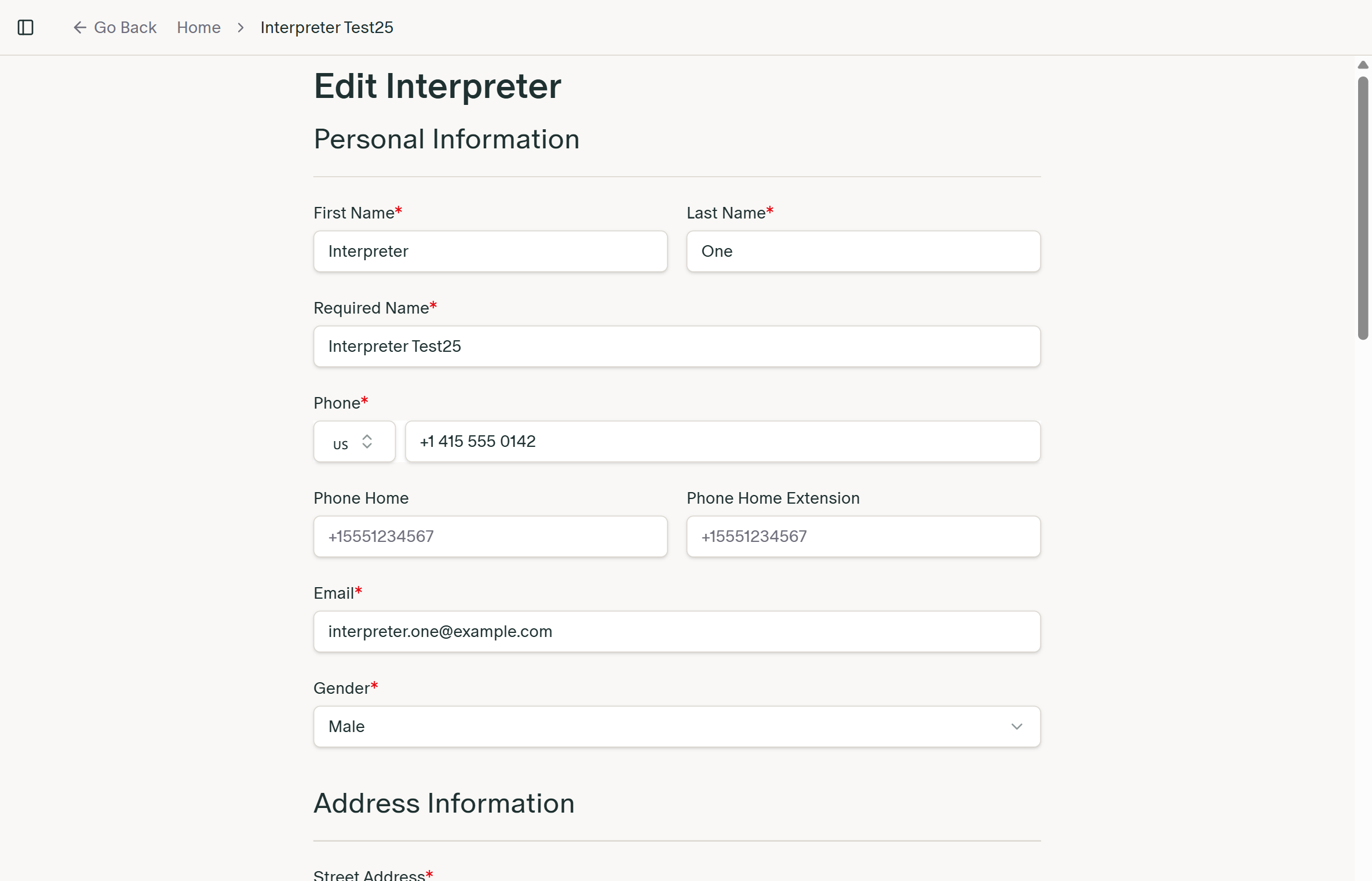
Change what you need. To add a certificate, upload its PDF under Professional Information.
Select Save.
To leave without saving, select Cancel. If you changed something, confirm with Yes, cancel.
What you will see
A success message appears and you return to the Interpreters list. The change is recorded in the interpreter's change history.
These are not on the Edit page:
Availability: use the Availability card on the interpreter's page.
Routing attributes: use Interpreter Attribute on the interpreter's page.
Rates: use the Rate Cards card on the interpreter's page.
Tipalti IDs: use Payee Accounts on the interpreter's page. See "Add an interpreter's Tipalti IDs".
Things that most often look wrong, and why:
"Some details can't be saved yet". A field needs fixing. Check the highlighted fields.
"User with this email already exists". Another Connexus user has this email address.
There is no Edit button. Only Platform Admins can edit interpreters.
Available since March 2026. Updated in Release 11.17.2026.
Last updated 18 November 2026