
Who this is for and what it does
Platform Admins use this to change the wording of a notification one client receives, such as the appointment receipt or the message sent when an interpreter is assigned. Each notification has a standard system message. A custom message replaces it for that client only. Every other client keeps the standard wording.
You can change the message text. You cannot change the subject.
Before you start
You need the Platform Admin role.
Know which notification you want to change and what it should say.
Steps
Open Clients, then open the client.
Under Client settings, select Notification Settings.
Scroll to Notification templates. There is one card for each notification, labelled with the event, for example Appointment receipt or Interpreter assigned, and with a badge showing whether it goes by Email or Push.
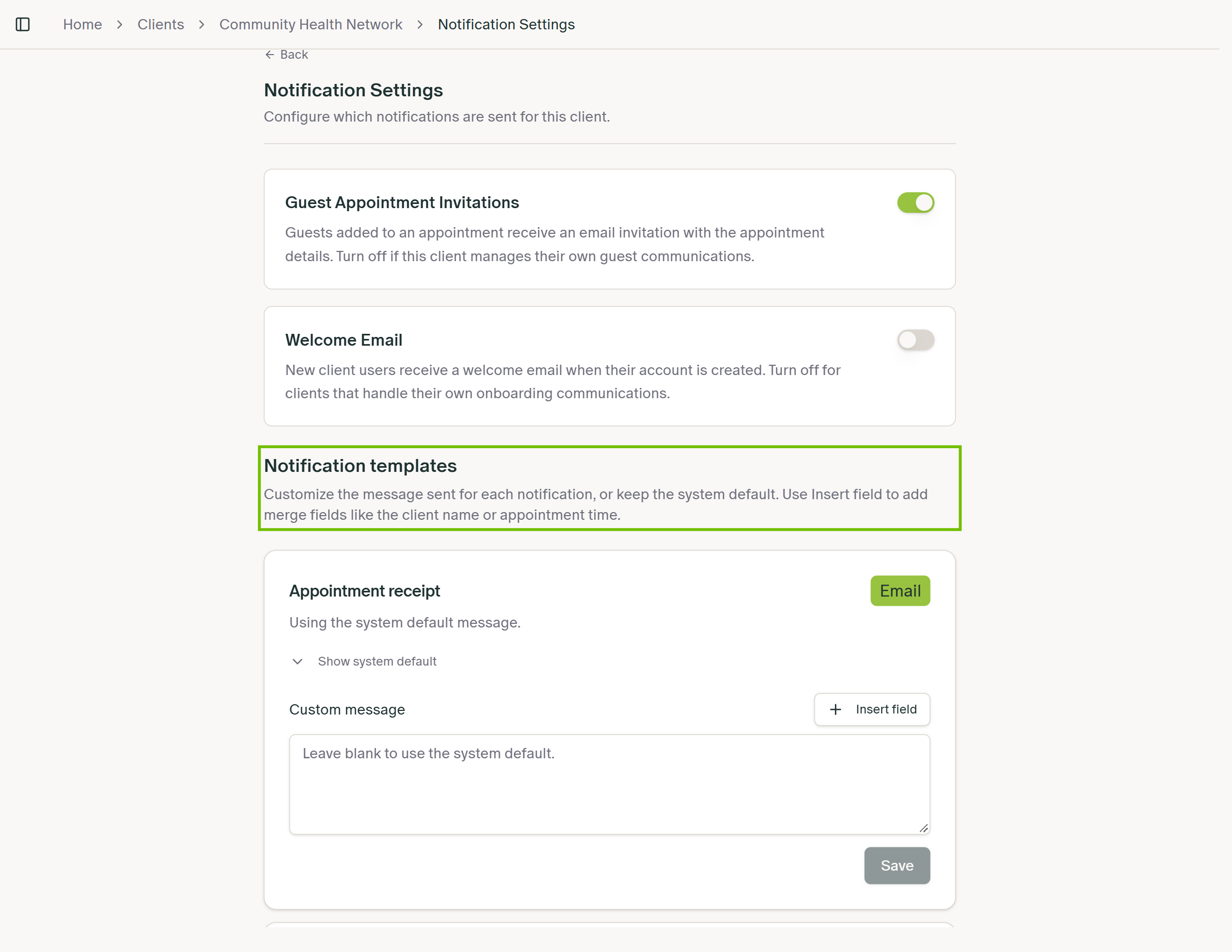
To see the standard wording first, select Show system default.
Type your wording into Custom message. To add a detail that changes from one appointment to the next, such as the appointment date or the interpreter's name, select Insert field and choose it. It goes in at the cursor, written in braces, for example {AppointmentDate}.
Check the Preview under the box, which fills each field with a made-up example.
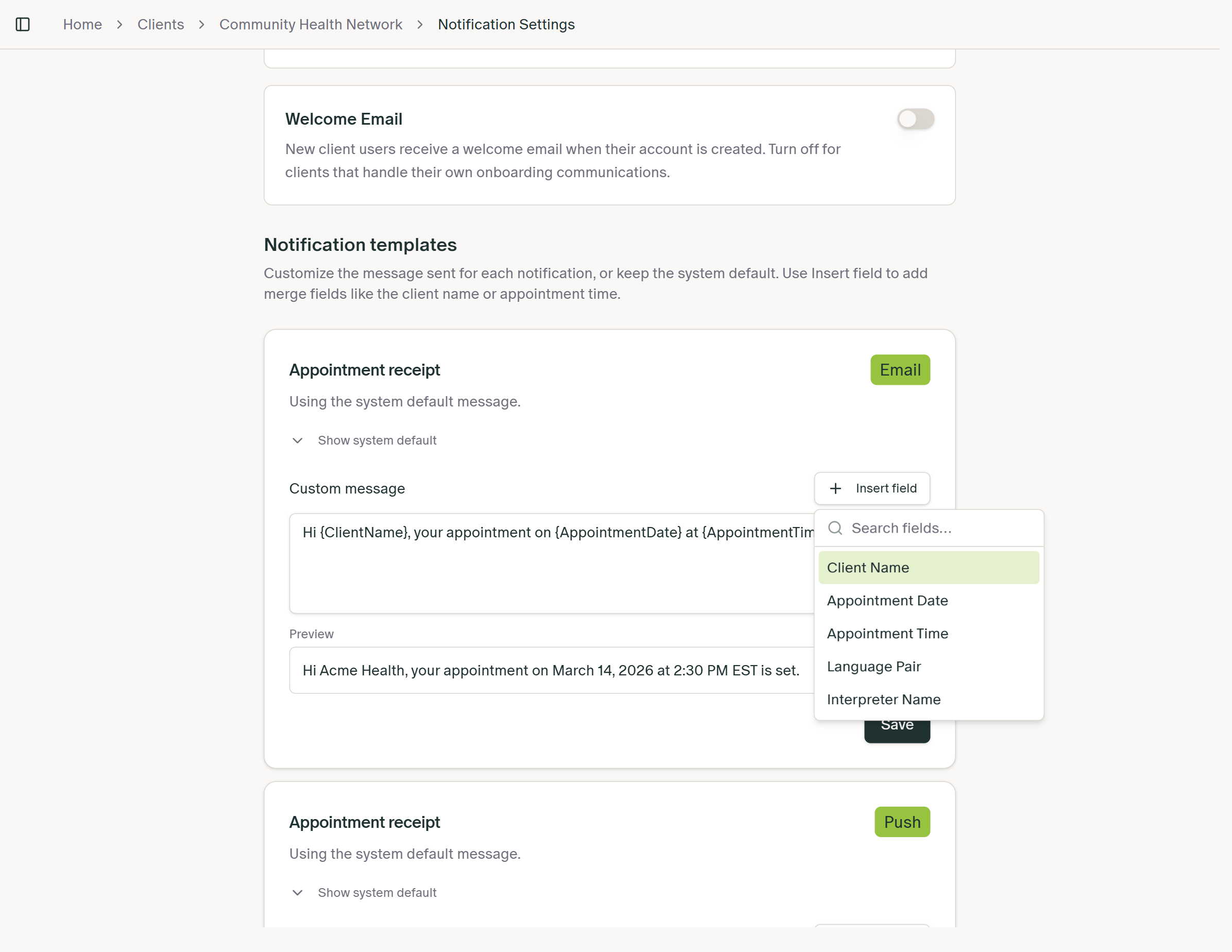
Select Save.
What you will see
A message reads "Notification template saved", and the card now reads "Using a custom message for this client."
To go back to the standard wording, select Reset to default. A message reads "Reset to system default" and the card reads "Using the system default message." again.
Things that most often look wrong, and why:
Save is greyed out. Nothing has changed since the last save. It becomes available as soon as the message differs from what is saved.
I cleared the message, saved, and it went back to the standard wording. That is intended. An empty custom message means use the system default, so saving it blank is the same as Reset to default.
The preview shows a name or date I did not type. Those are made-up examples for the fields, so you can see where each one lands. The real message uses the actual appointment's details.
A field shows in braces in the preview. There is no example value for that field, so the preview shows its name instead. The real message fills it in.
I cannot change the subject line. Only the message text can be changed.
The message did not save. A message reads "Failed to save notification template". Try again.
Available since Release 06.15.2026
Last updated 24 September 2026