
Who this is for and what it does
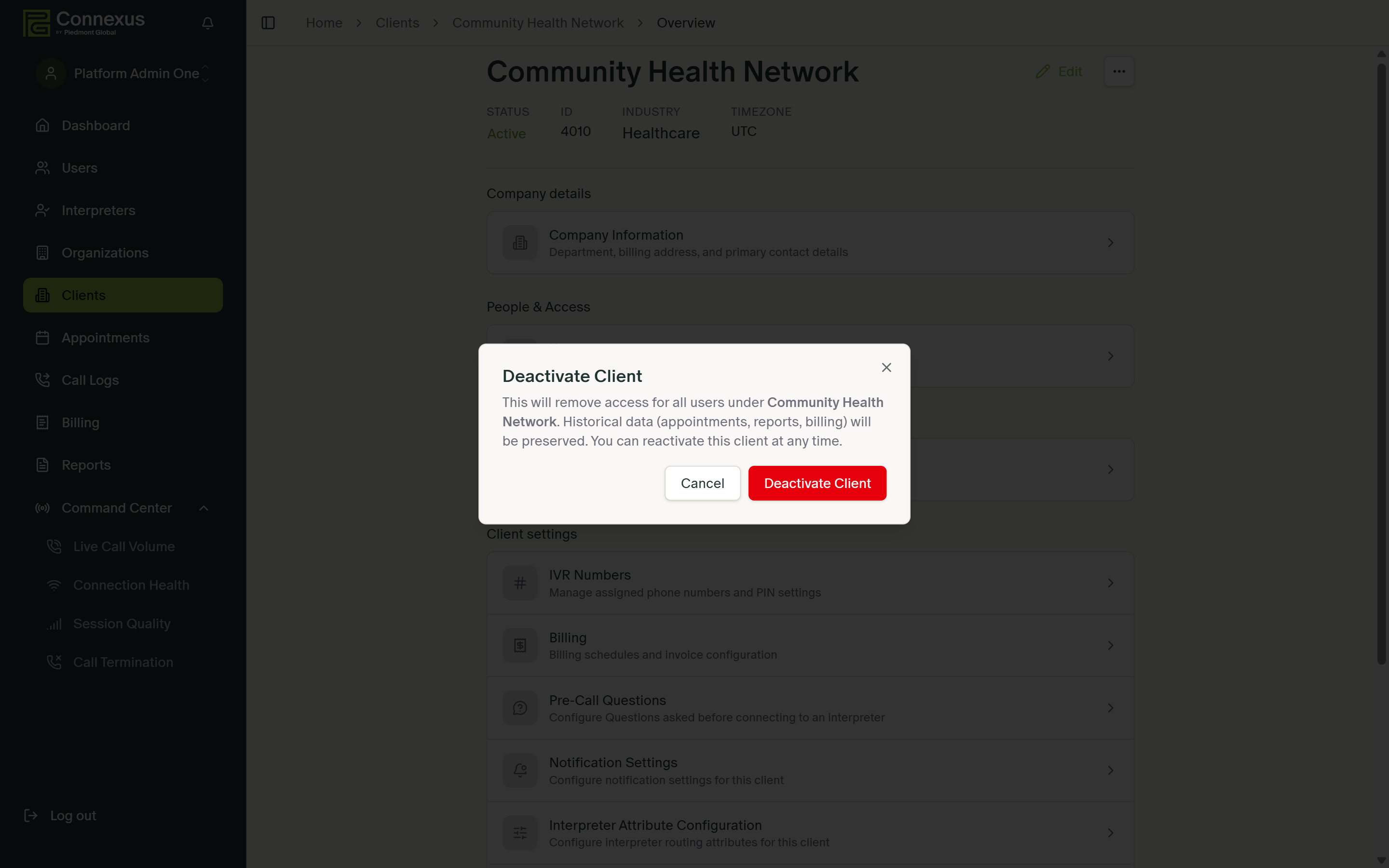
Platform Admins use this to stop a client using Connexus, for example when a contract ends, and to switch it back on later. Deactivating removes access for all the client's users. Their appointments, reports and billing history are kept, so nothing is lost and you can reactivate the client at any time.
It is also how you switch on a client that was created inactive.
Before you start
You need the Platform Admin role.
Before deactivating, check that the client's users should lose access now. It applies to all of them at once.
Steps
To deactivate a client:
Open Clients, then open the client.
Select More options, the menu button beside Edit.
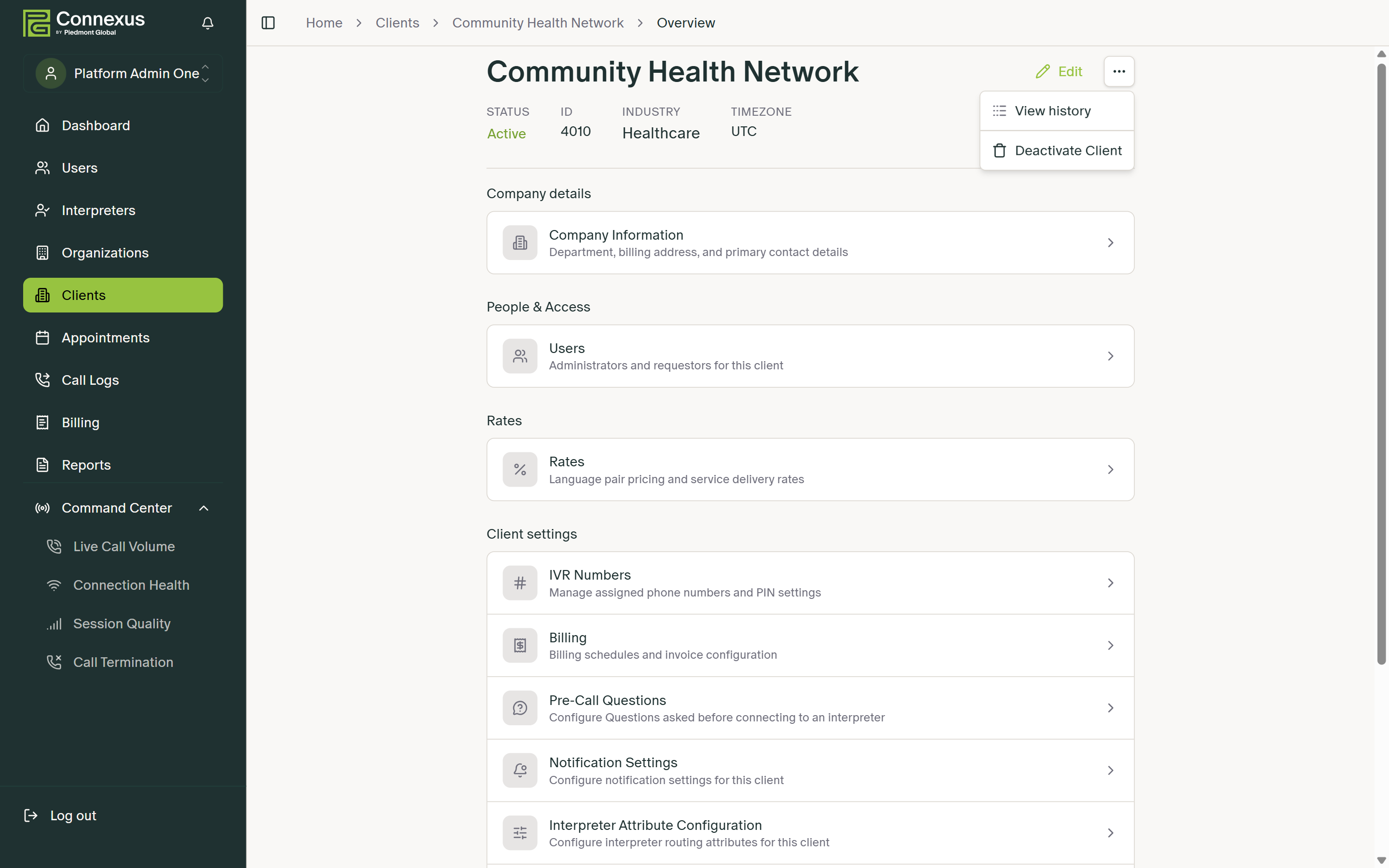
Select Deactivate Client.
Read the confirmation and select Deactivate Client again.
To reactivate a client:
Open the client and select More options.
Select Reactivate Client. There is no confirmation step. It takes effect straight away.
What you will see
After deactivating, a message names the client and says it "has been deactivated". After reactivating, it says the client "has been reactivated". Either change is recorded in the client's history: select More options, then View history, and look for Deactivated or Reactivated.
Things that most often look wrong, and why:
There is no More options menu. It appears only for Platform Admins.
The menu shows Reactivate Client instead of Deactivate Client. The client is already inactive. Only the action that applies to its current status is offered.
I reactivated a client by mistake. Reactivating does not ask first. Deactivate it again from the same menu.
I created a client as inactive and the form told me to activate it from Client Settings. That message is wrong. Use Reactivate Client in the More options menu, as above.
Available since Release 04.15.2026
Last updated 24 September 2026