
Who this is for and what it does
Platform Admins and Schedulers use this to book the same appointment on many dates at once, for example a weekly therapy session or a monthly review. You fill in the appointment details once, choose the dates, and Connexus creates one appointment for each date and offers each one to interpreters in the usual way. It does not create on-demand calls, and client users cannot create a series themselves; they ask you to set it up.
Before you start
You need the Platform Admin or Scheduler role.
The client must already exist, with at least one language set up and a rate card for the service you are booking.
You need to know who the Requestor is. The form requires one even though the field is not marked as required.
If the client uses client-specific booking fields, those fields appear on the form and the required ones must be filled.
Know the time zone the appointments should follow. The form starts with the client's time zone when the client has one set, otherwise with yours.
Steps
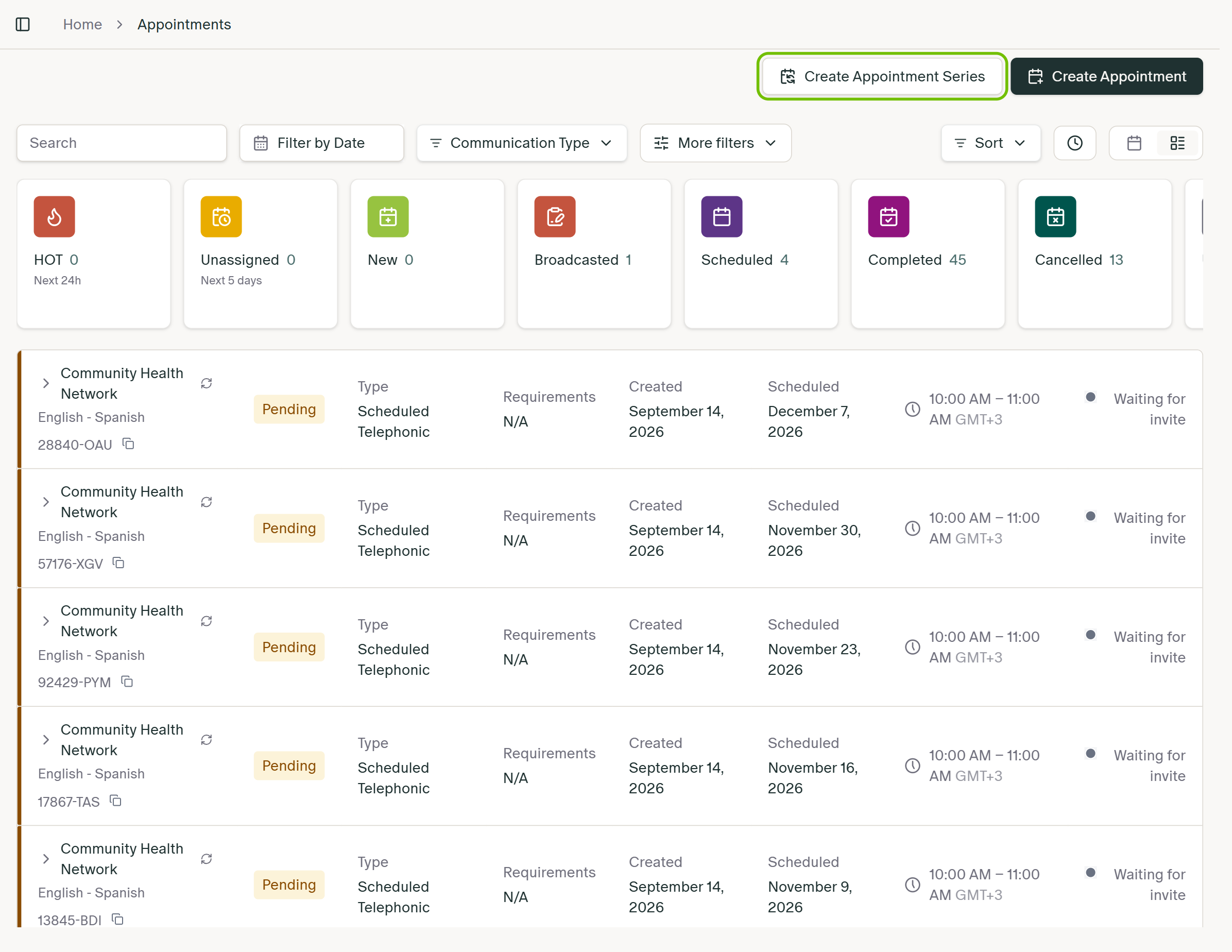
Open Appointments and select Create Appointment Series at the top right.
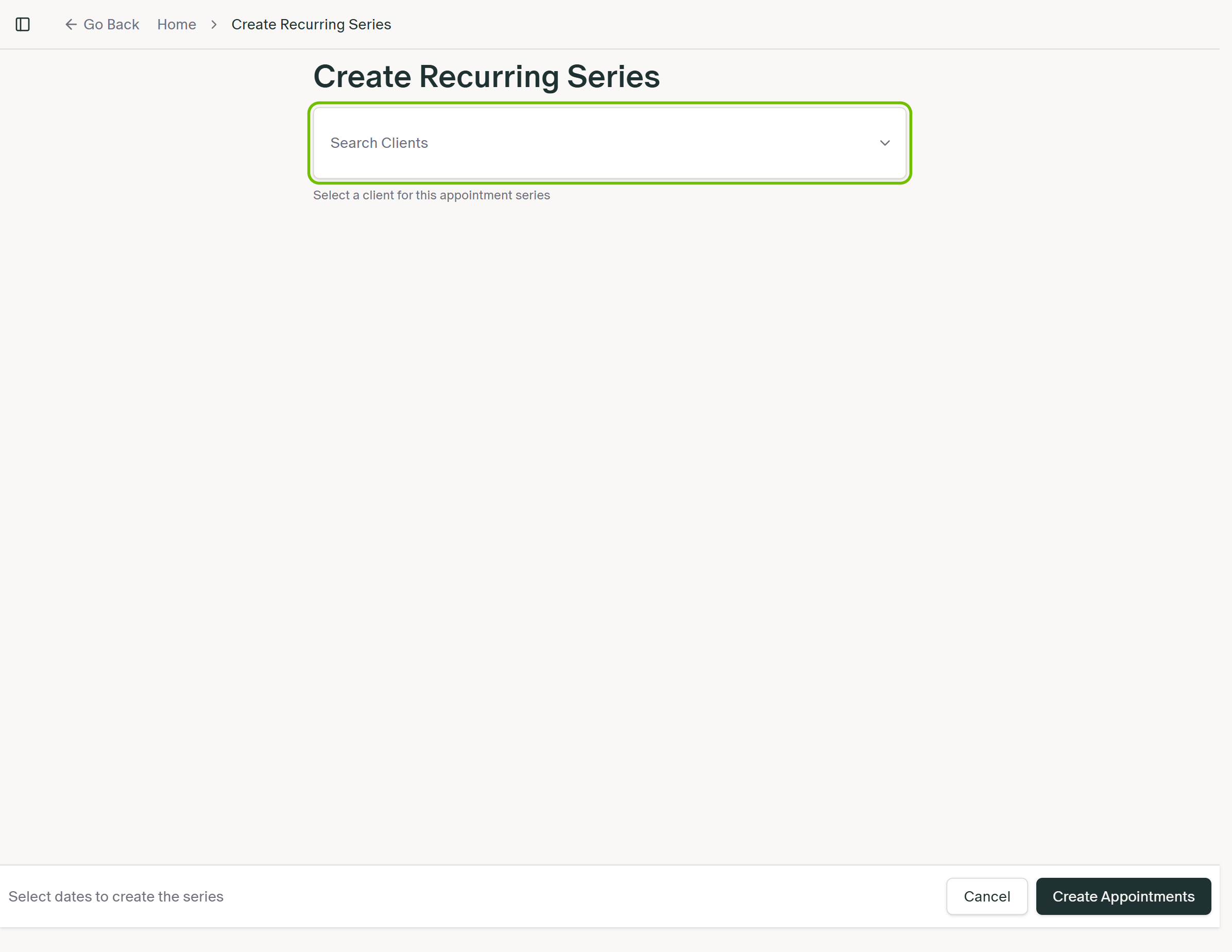
In Search Clients, choose the client. The rest of the form appears once a client is selected.
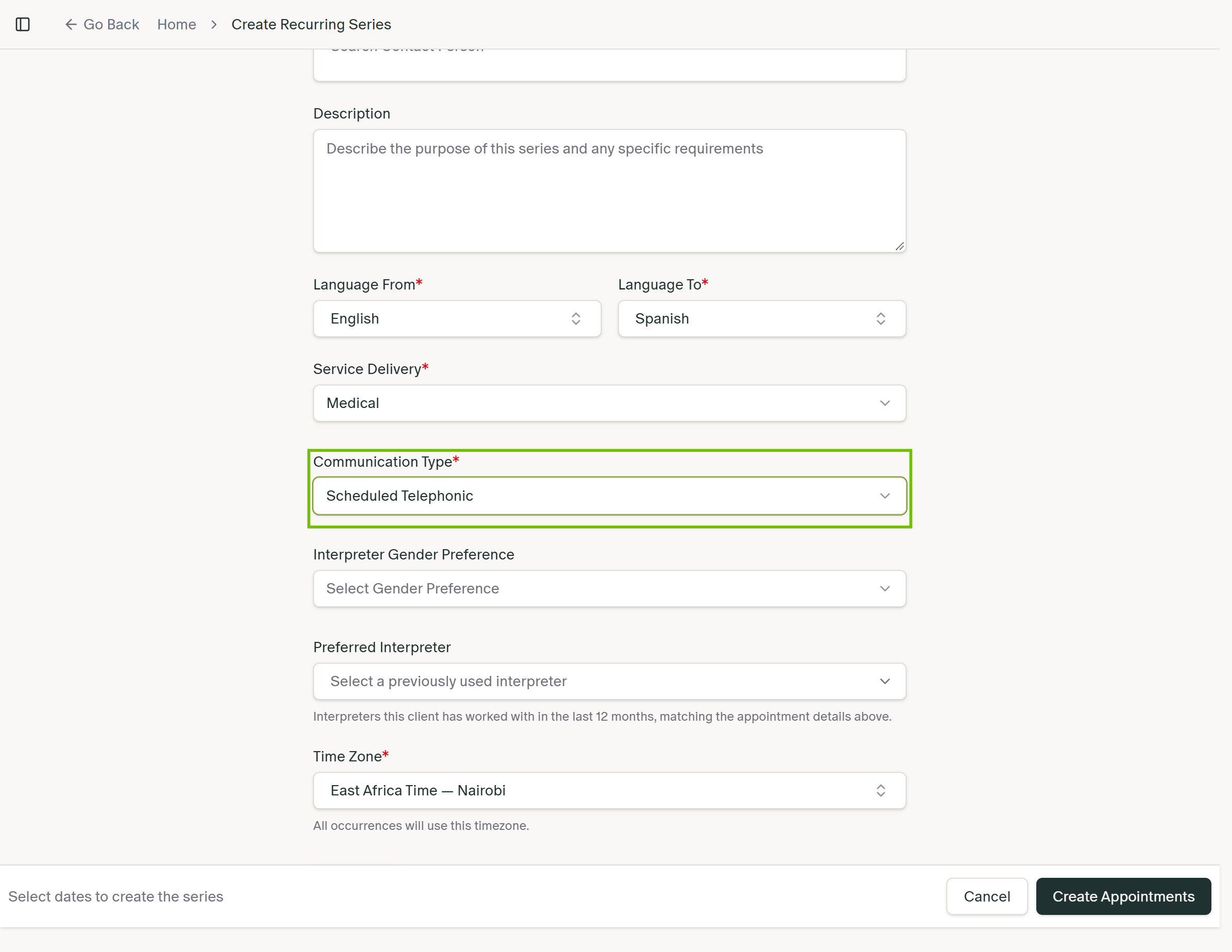
Choose the Requestor, the client user the appointments are for. Then fill in the rest of the appointment details: Contact Person, Description, any client-specific fields, Language From and Language To, Service Delivery and Communication Type. Add an Interpreter Gender Preference or a Preferred Interpreter if the client asked for one. These details are copied to every appointment in the series.
Check Time Zone. It starts as the client's time zone when the client has one set; otherwise it starts as your own. Every appointment in the series uses this zone, so change it here if the appointments should follow a different one.
Add Participants if other people should be on the call, either client Users or Guests by name and email. For a sign language video series, answer Where is the deaf consumer? before you create it. For an on-site series, confirm the address. For a Third Party Platform series, the meeting link is required.
Under Time, enter the Start time and End time. The same time applies to every date in the series, and the duration appears under the end time.
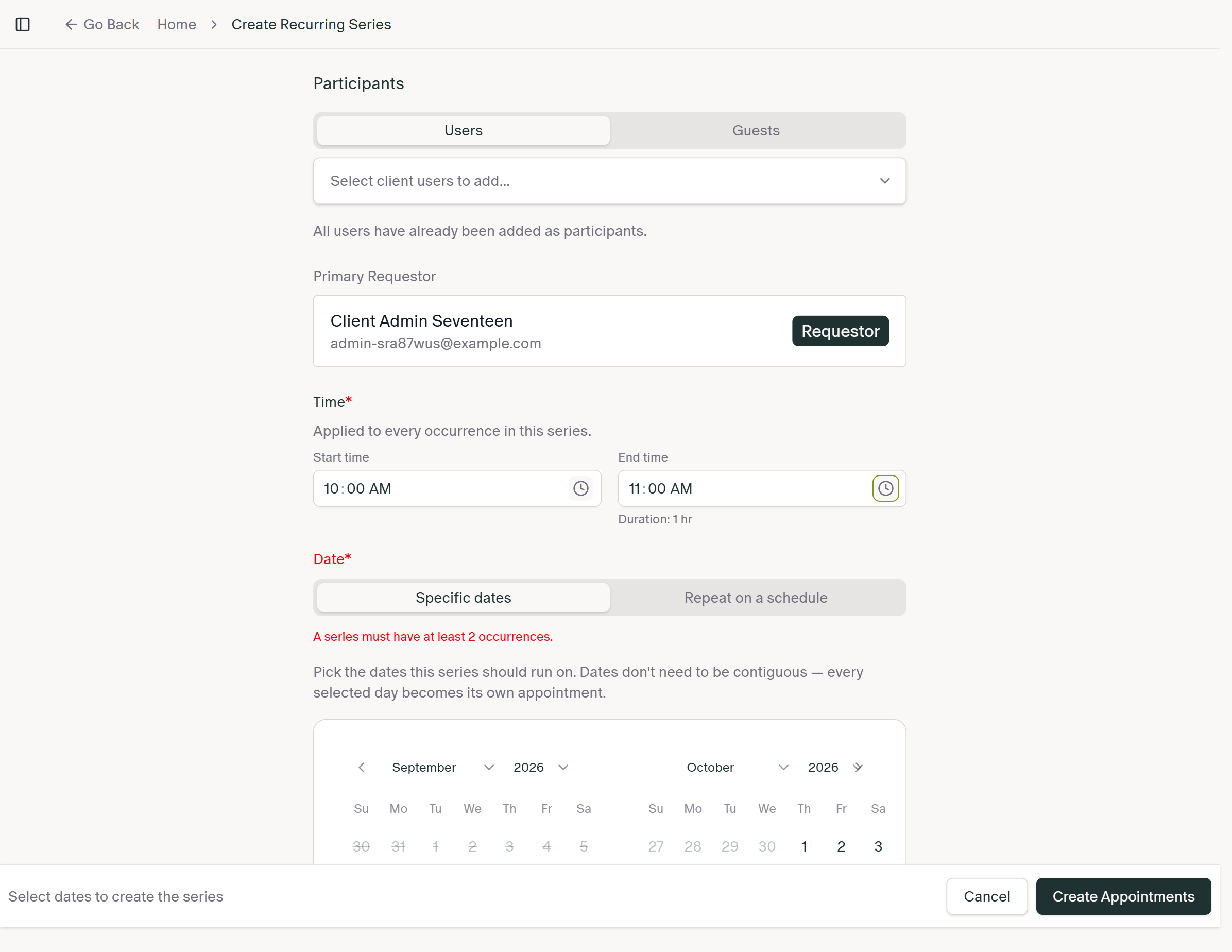
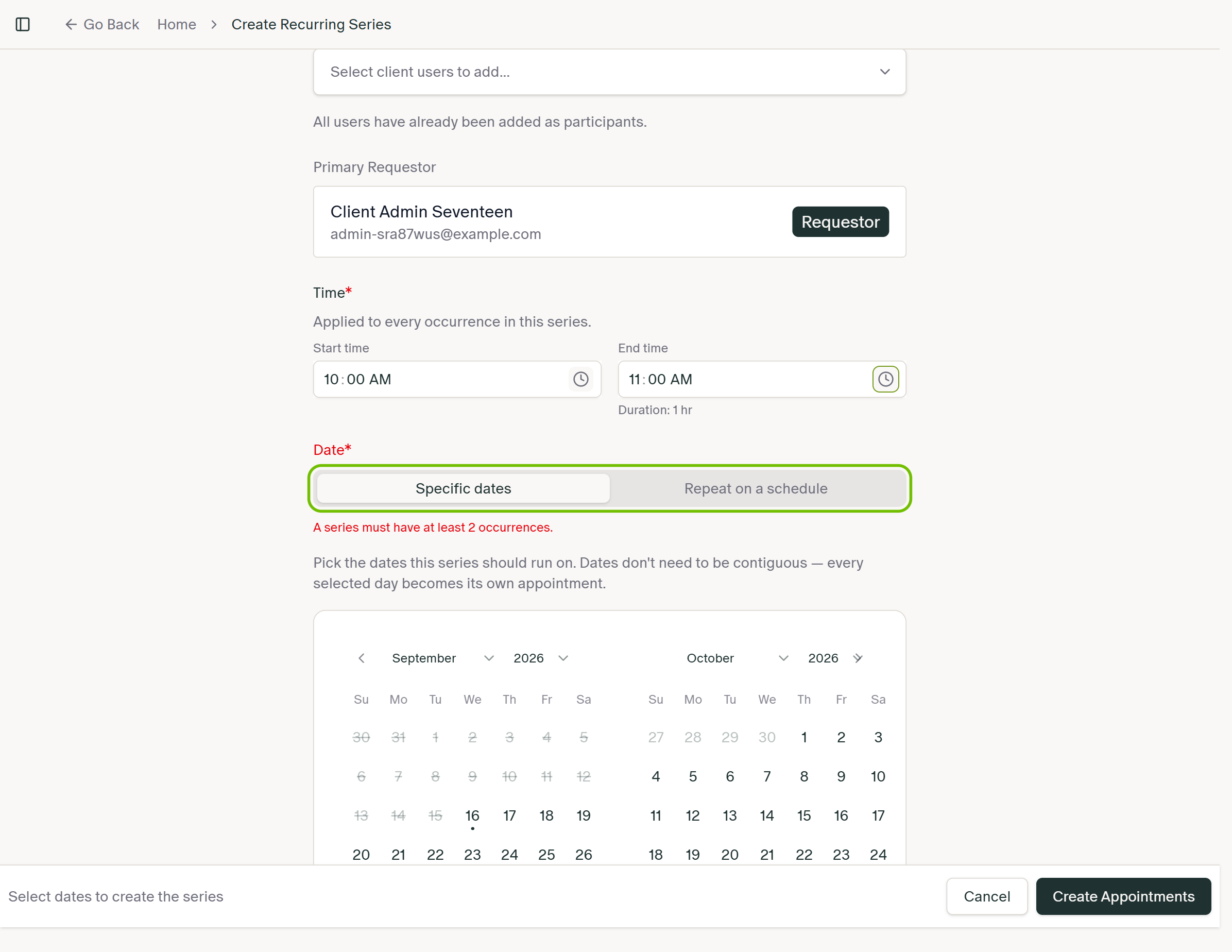
Under Date, choose how to pick the dates. Specific dates lets you click each day on a calendar. Repeat on a schedule generates the dates from a pattern.
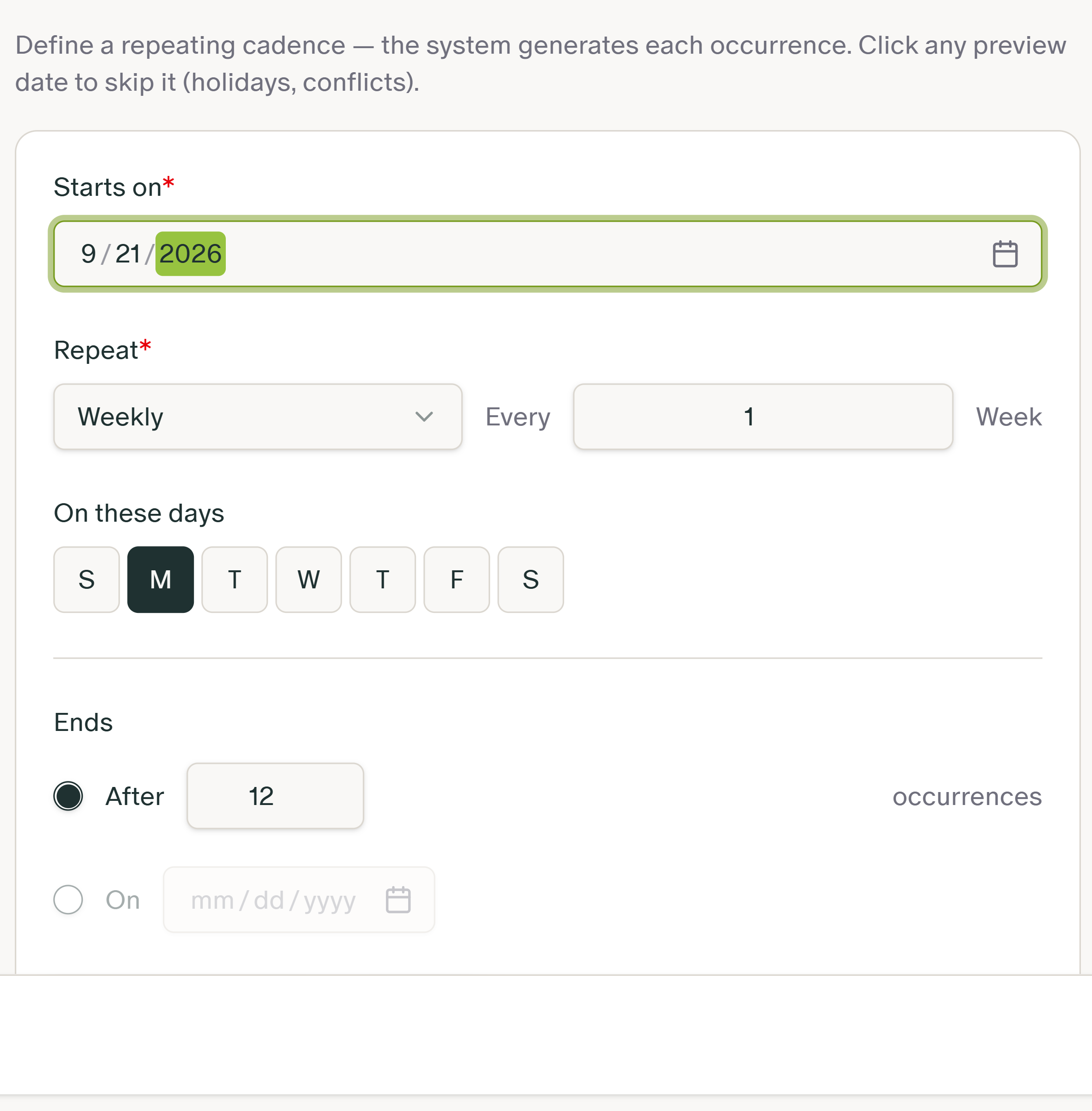
For a schedule, set Starts on, choose Repeat (Daily, Weekly or Monthly) and Every (how many days, weeks or months apart), pick the days of the week for a weekly series or the day of the month for a monthly one, and set Ends either After a number of occurrences or On a date. Then choose what happens If an occurrence falls on a weekend: allow it, reject it, skip it, or move it to the Friday before or the Monday after.
Review the Occurrences preview. Each date is shown as a chip; click a chip to skip that date, for example a public holiday, and click it again to restore it. The Occurrences heading, the summary card in the schedule panel and the bar at the bottom of the page all show the same thing: how many appointments will actually be created, the first and last of those dates, and how many dates you have skipped. They change together as you skip and restore. If you skip every date, the summary disappears and a message tells you there is nothing left to create.
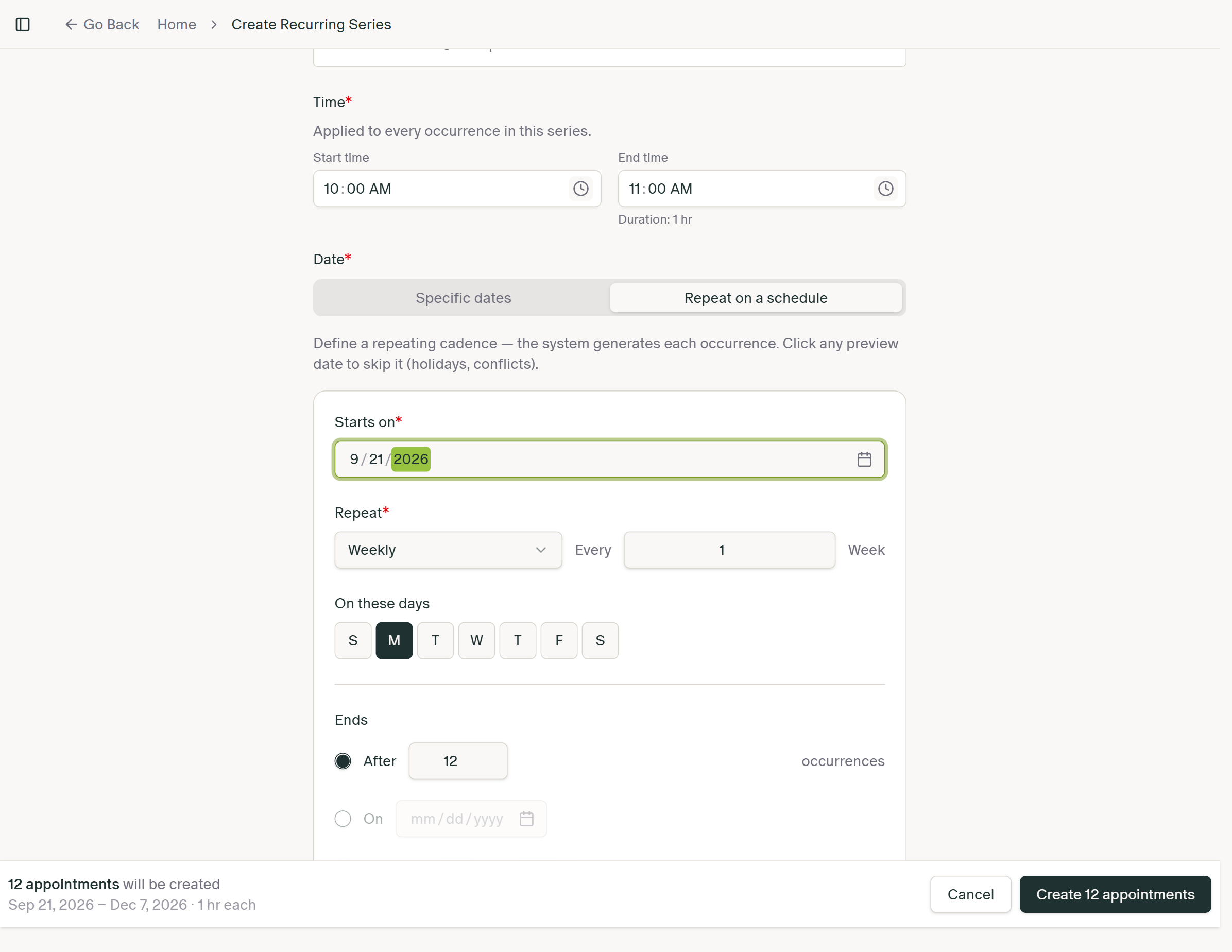
Select Create N appointments (the button shows the number). Connexus creates the appointments and opens the series page.
What you will see
A message reads "Appointment series created!" and the series page opens under the client's name. It shows a Series label, the series ID, the date range, the next appointment time, the duration per occurrence, the communication type and the gender preference, then counts by status and the list of appointments with their date, time, status and interpreter. From here you can Edit series fields, Add occurrence, or open the menu to Cancel series, and you can tick appointments in the list to assign, reassign, unassign or cancel them together. Each appointment in the list is a normal appointment: it is offered to interpreters, can be opened on its own, and appears in the client's appointment list.
Things that most often look wrong, and why:
The series is refused with a message about selecting a Requestor. The Requestor field is required even though it is not marked. Choose one and create the series again.
"A series must have at least 2 occurrences." A series needs two or more dates. Add a date, or restore one you skipped.
A weekend warning appears and the series will not create. The weekend setting is Reject by default, so any weekend date blocks the series. Choose Skip that occurrence or one of the shift options, or click the weekend chips to skip them.
The Create button is greyed out. The form is still loading the client's booking fields. Wait a moment and try again.
The dates or times look shifted. The time you entered is in the series time zone shown in Time Zone, not necessarily the one on your computer.
An on-site address is rejected. The message "This address could not be verified" means the street address and city could not be found on a map. Correct them and try again.
Tactile or Pro Tactile is missing from the languages, or only on-site types are offered. Tactile and Pro Tactile are signed into the hands, so they can only be booked on site. Once one of them is chosen, Communication Type offers only Onsite Consecutive and Onsite Simultaneous; once any other type is chosen, they are not offered as languages. The same applies in Edit series fields, where the languages are locked and only the type can change.
"Tactile is only available for on-site appointments. Choose an on-site communication type or another language." (or Pro Tactile). The series pairs one of them with a phone, video or Third Party Platform type, most often an older series. Choose an on-site type.
"Bad Request" with "Tactile is only available for on-site appointments". The same cause, refused when you save a new series, or a change to the type or a language. An older series can still be saved for other changes.
The new appointments show Pending and Waiting for invite. Something in the client's setup must be resolved before interpreters can be invited, most often a missing rate for this service and language. Open one of the appointments; the notes at the top say what action is required.
Limits: a series can hold up to 52 appointments, it cannot start in the past, a monthly series repeats on a day between 1 and 28, and the interval can be up to 52.
Available since Release 07.02.2026. Updated in Release 10.19.2026. Updated in Release 11.17.2026.
Last updated 18 November 2026