
Who this is for and what it does
Schedulers and Platform Admins use this to staff a scheduled appointment. Assigning books one interpreter directly. Inviting offers the appointment to several interpreters, and it is theirs to accept.
Before you start
You need the Scheduler or Platform Admin role.
The appointment must not have started, and must not be Cancelled, Completed, Unfulfilled or pending billing verification.
Steps
Assign one interpreter
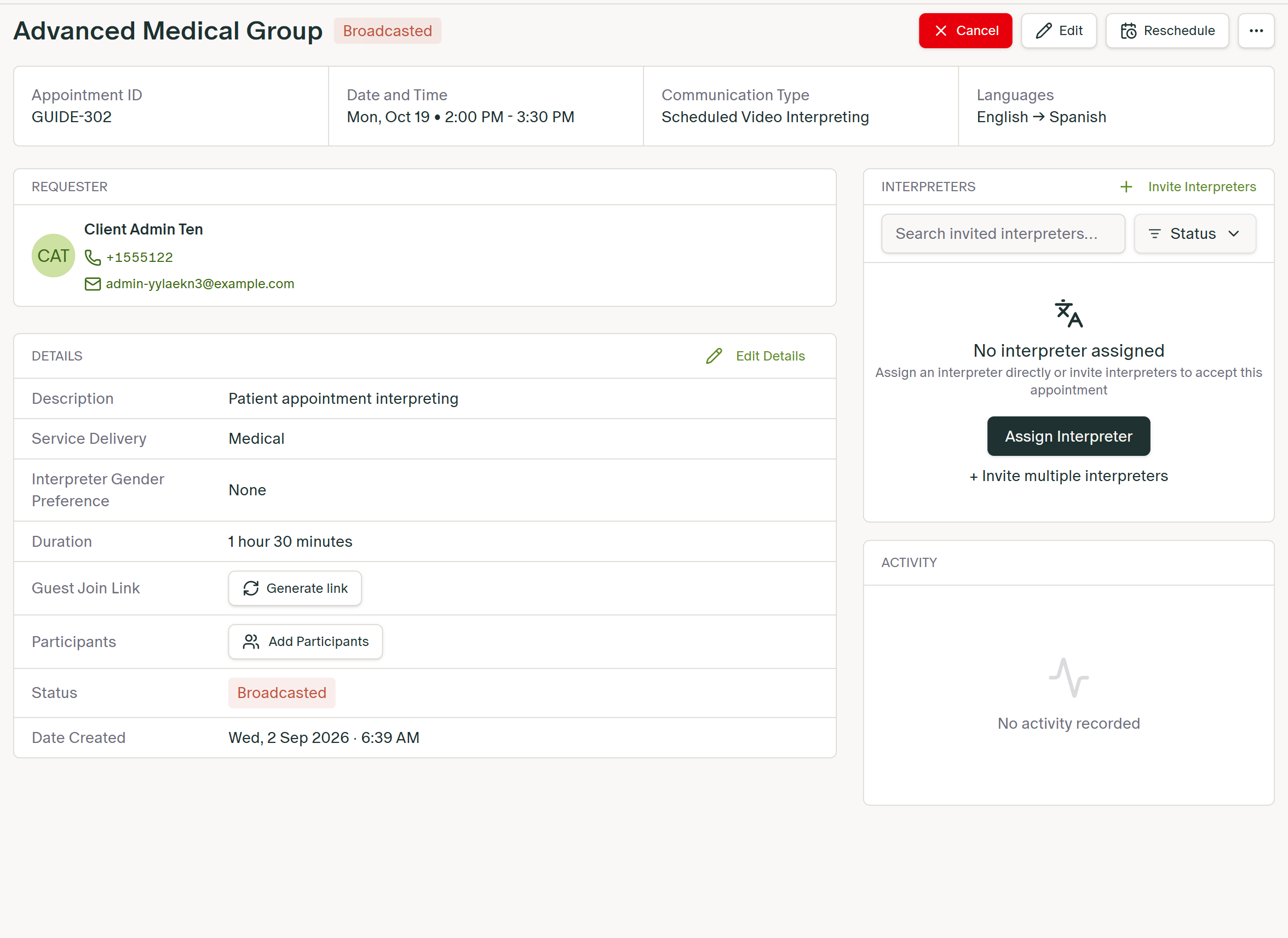
Open the appointment. In the Interpreters card, select Assign Interpreter.
The list shows available interpreters who match the appointment. An interpreter who has never set their availability counts as available. To see everyone, turn off Only matching attributes. For an on-site job, move the radius slider to search further, up to 100 miles.
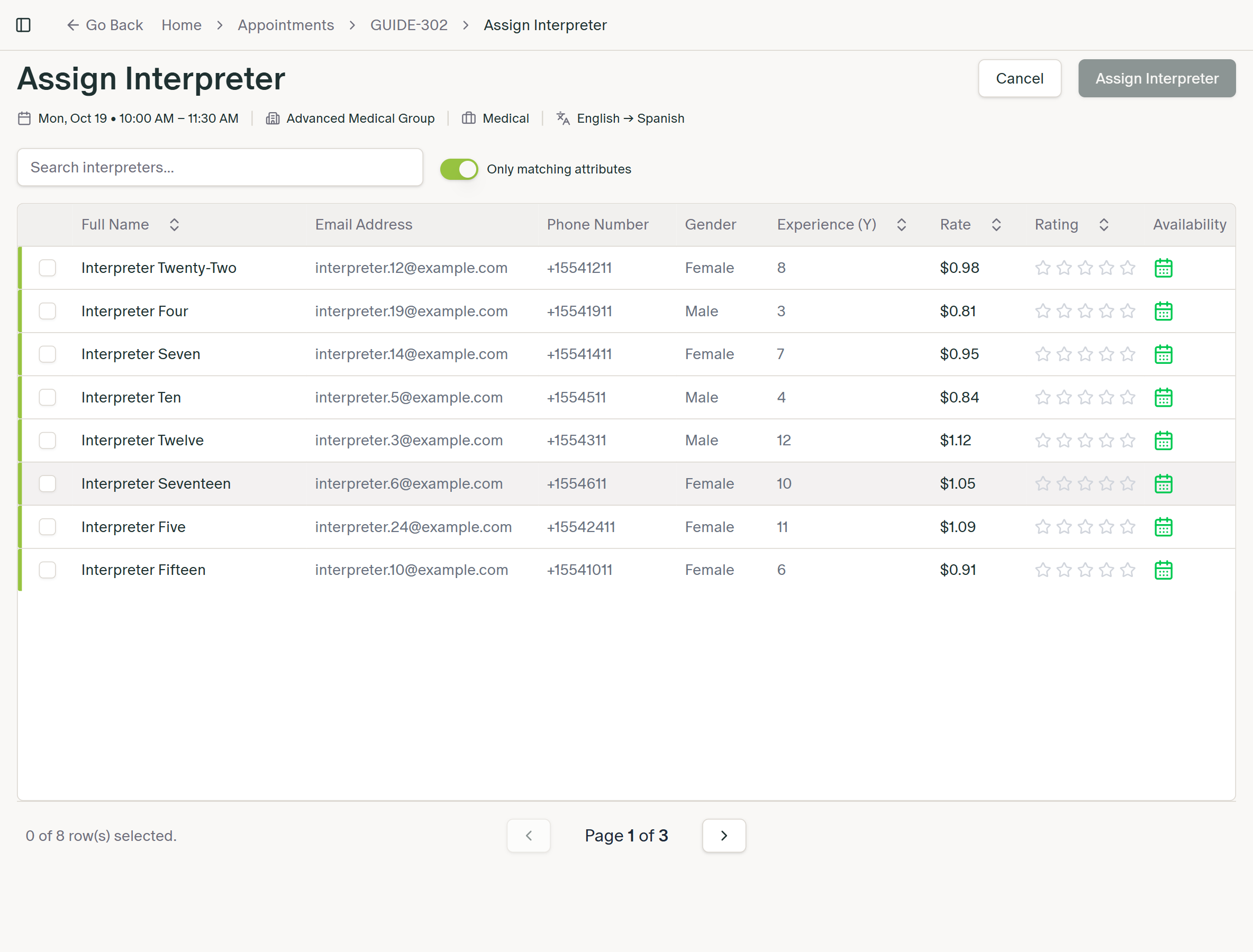
Select one interpreter, then Assign Interpreter.
In Assign interpreter?, check the name and select Assign Interpreter. If the interpreter does not meet the appointment's requirements, the window lists what is missing. You can still assign them when only the service type is missing; an attribute the client requires blocks it.
Assign someone who was already invited
If interpreters have already been invited, the card lists them. Select Assign on the interpreter's row and confirm. Their invitation becomes Confirmed.
Invite several instead
In the Interpreters card, select Invite Interpreters (or + Invite multiple interpreters).
Select the interpreters, then Invite Interpreters. If some do not meet the requirements, Invite interpreters who don't qualify? lists them: select Invite anyway or Go back. If any lack an attribute the client requires, the window reads Some interpreters can't be invited and Invite anyway is off: remove them and invite again.
What you will see
After assigning, a message reads "Interpreter Assigned to Appointment" and you return to the appointment. It becomes Scheduled, the interpreter shows as Confirmed, and any other open invitations close. After inviting, the appointment is Broadcasted until someone accepts.
If the interpreter lacks an attribute the client requires, the dialog reads "This interpreter can't be assigned. The client requires ..., which they don't hold." and Assign Interpreter is disabled. See "Require interpreter attributes for a client".
Things that most often look wrong, and why:
"Interpreter has a conflicting appointment during this time". The interpreter has another booking that starts or ends within 15 minutes of this one.
"This appointment conflicts with another on-site appointment" and "too far apart to travel". The interpreter's other on-site job leaves too little time to get there.
"Cannot assign interpreter for appointment with status". The appointment has started, finished, or been cancelled.
An interpreter is missing from the list. The list leaves out interpreters already invited, the one already assigned, interpreters the client has excluded, and, with Only matching attributes on, interpreters who do not meet the requirements. On-site, interpreters marked "Out of range" or "No location" cannot be selected. For every other reason, see Why can't I invite or assign this interpreter?
Available since March 2026. Updated in Release 10.19.2026.
Last updated 20 October 2026