
Who this is for and what it does
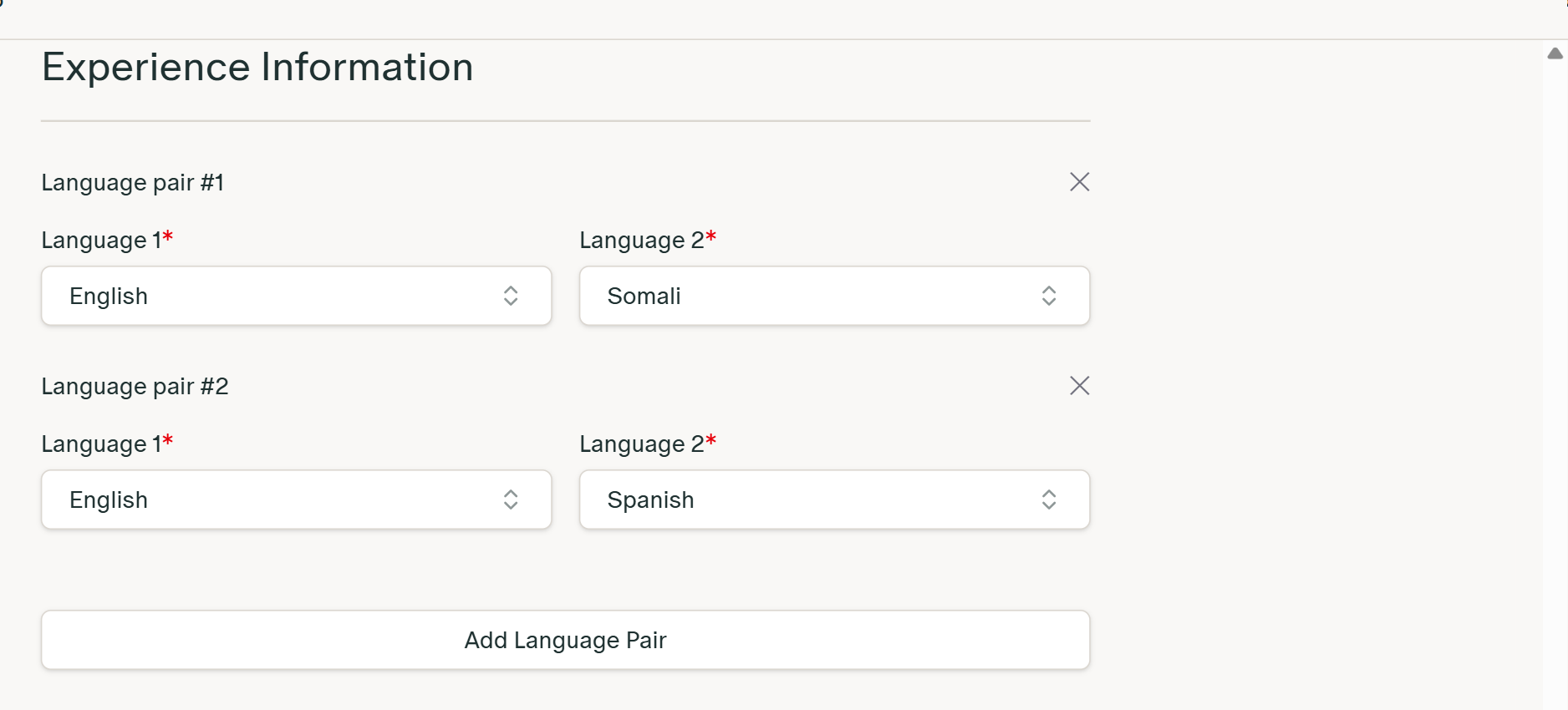
Platform Admins use this to set which languages an interpreter is offered work in. A pair goes one way: Language 1 is the language interpreted from and Language 2 the language interpreted into. English to Spanish does not cover Spanish to English; add both if the interpreter works both ways.
Before you start
You need the Platform Admin role.
Steps
Add or change a pair
Open Interpreters, open the interpreter and select Edit.
Under Experience Information, select Add Language Pair, then choose Language 1 and Language 2. To change a pair, choose different languages on its row.
Select Save.
Remove a saved pair
On Edit, under Experience Information, select the X beside the pair.
The pair is removed straight away and a message reads "Language pair removed". You do not need to select Save for this.
The interpreter must keep at least one pair.
What you will see
The pairs show on the interpreter's Profile Information as Language 1 and Language 2. Changes are recorded in the interpreter's change history.
Things that most often look wrong, and why:
"Cannot remove language pair" with "There are active appointment(s) that depend on it". The interpreter has upcoming work or open invitations in this pair. The message lists the appointment IDs. Reassign or finish them first.
"Cannot remove language pair" with "Remove it from the interpreter's rate card(s) first". A current or future rate card still prices this pair. It has to come off the rate card first.
"This interpreter already has the language pair". The pair you chose is already on the list.
"Languages cannot be the same". Language 1 and Language 2 must differ.
The interpreter is not offered work in the other direction. Pairs go one way. Add the reverse pair.
Available since March 2026
Last updated 14 October 2026