
Who this is for and what it does
Platform Admins use this to bring an interpreter who has been approved in Zoho Recruit into Connexus. Their name, phone, email, years of experience and gender come across from Zoho; you add the rest. Schedulers can view interpreters but cannot add them.
Before you start
You need the Platform Admin role.
The candidate must be approved in Zoho Recruit. Candidates who are not approved do not appear in the search.
Have their address, language pairs, industries and the call types they take.
Steps
Open Interpreters and select Add Interpreter.
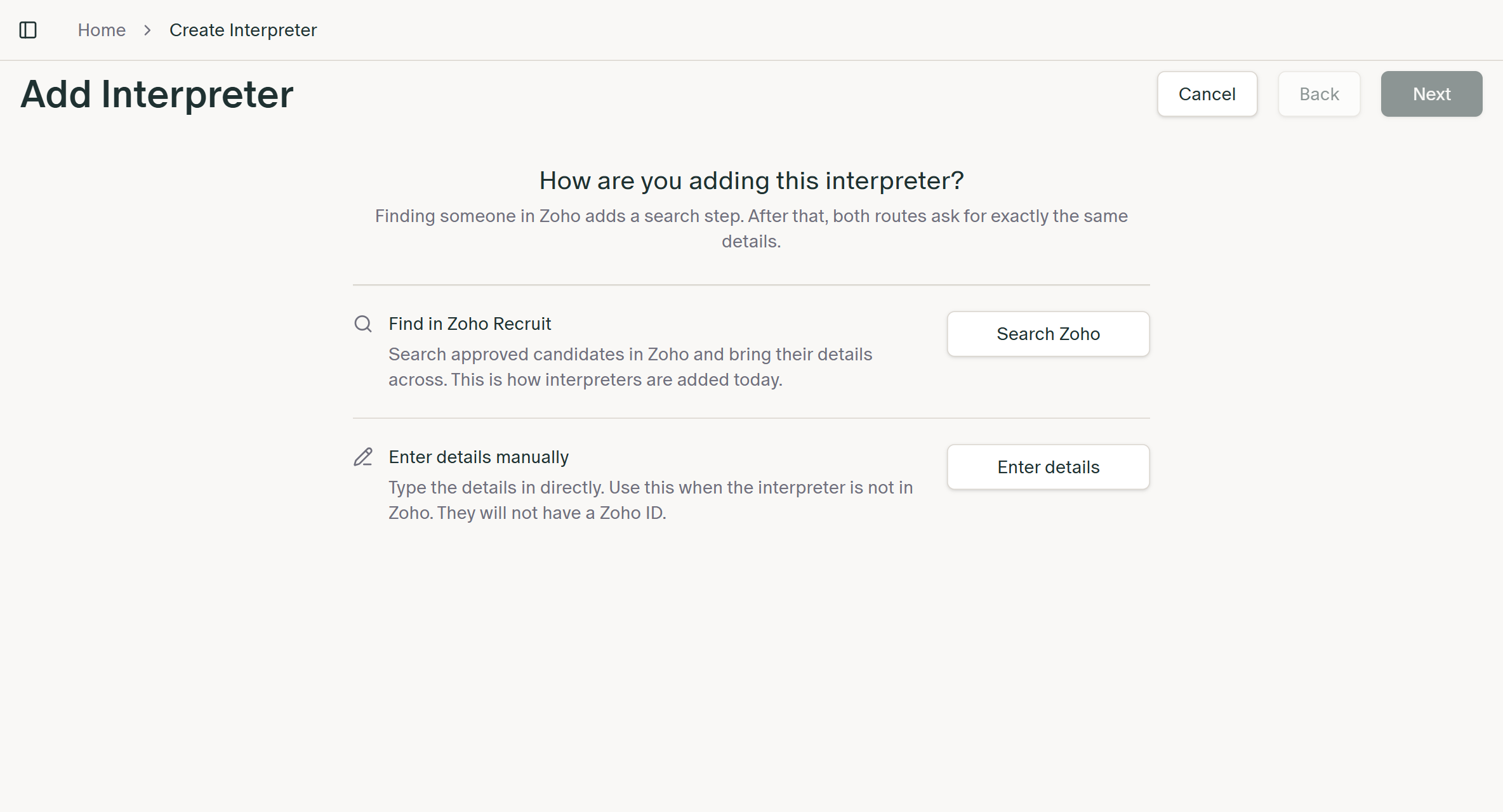
Under How are you adding this interpreter?, select Search Zoho.
Type part of the candidate's first name, last name or email, then select them in the results.
On Personal Information, check what came from Zoho and fill in the rest. Required: First Name, Last Name, Required Name, Phone (with the country code, for example +15551234567), Email, Gender, Street Address, City, Country, at least one language pair, Industry and Communication Types. Required Name is not filled in from Zoho. Select Next.
On Select Template, choose a rate-card template, then check Edit Rates and select Next.
On Availability, optionally choose the Work Days and a Start Time and End Time. The same times apply to every day you choose.
Select Submit.
What you will see
A success message appears and you return to the Interpreters list. The interpreter's account is pending until they accept their invitation. Their Profile Information shows their Zoho ID.
If their industry is Healthcare or CMS, Medical Qualified is ticked for them; if it is Legal, Legal Qualified is. Check this under Interpreter Attribute on their page.
Things that most often look wrong, and why:
The candidate is not in the search results. Only candidates approved in Zoho Recruit are listed. Check their status in Zoho.
"Select an interpreter from the search results to continue". Select a candidate in the results before Next.
"Interpreter already exists". This Zoho candidate is already in Connexus. Search the Interpreters list for them.
"User with this email already exists". Another Connexus user has this email address.
The interpreter says the invitation never arrived. While they are pending, open their page, select ..., then Resend Invitation.
Available since March 2026. Medical and Legal Qualified set from industry since Release 09.21.2026.
Last updated 14 October 2026