
Who this is for and what it does
Platform Admins use this to add an address a client books from, such as a second site or office. A client can have several locations. You can also add locations while creating a client, on the Locations step, which works the same way.
Before you start
You need the Platform Admin role.
Have the full address. Street address, city and postal code are required.
Steps
Open Clients, then open the client.
Select Edit.
Scroll to the locations and select Add Location. A new card opens, numbered after the existing ones, for example Location #3.
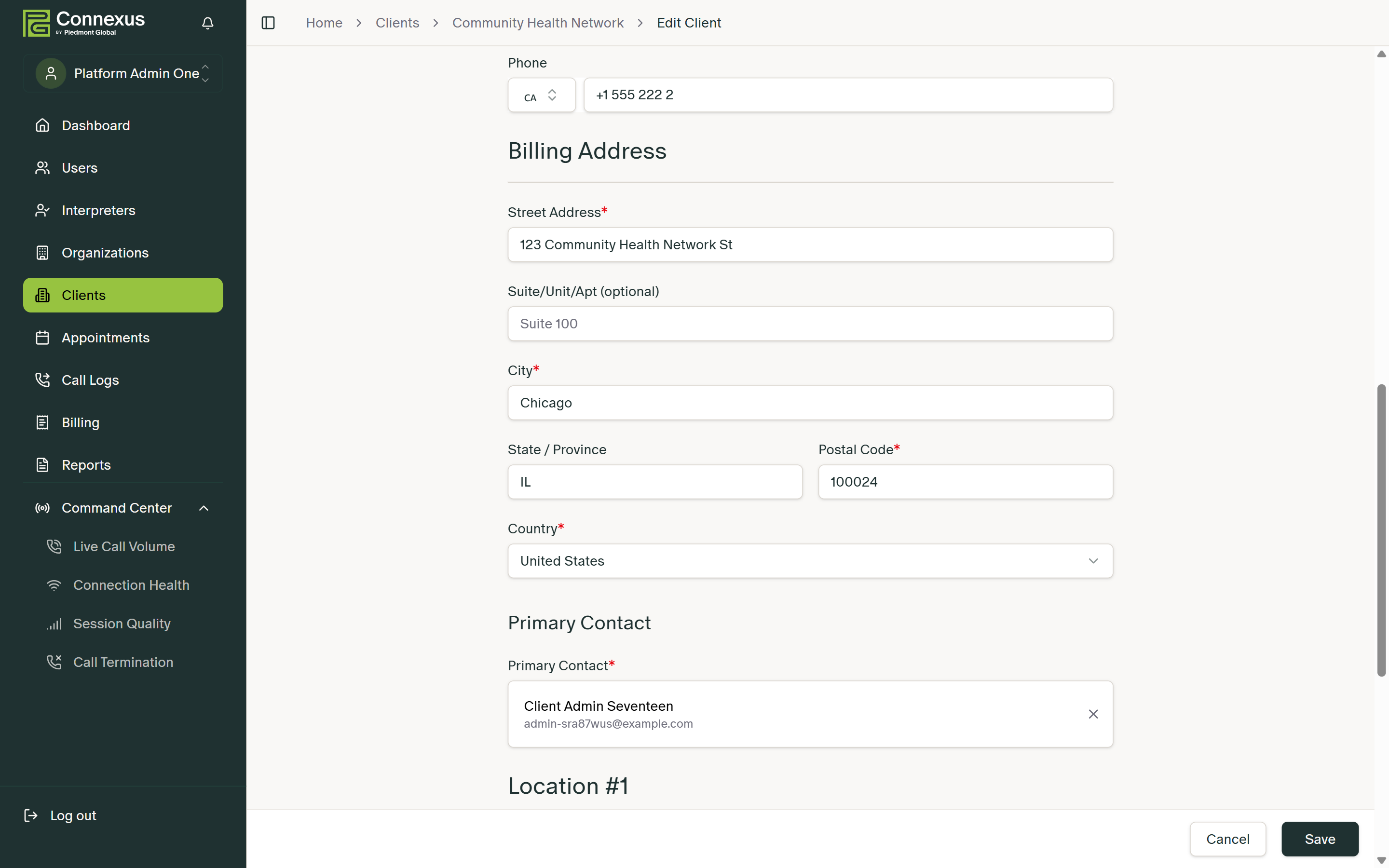
Fill in Street Address, Suite/Unit/Apt if there is one, City, State / Province, Postal Code and Country.
Select Save at the top of the page.
What you will see
A message reads "Client Updated!" and the new location is saved with the client.
Things that most often look wrong, and why:
There is no Remove option on a location. A client's first location, Location #1, can never be removed. Only locations after the first can be. To change the first location's address, edit its fields and select Save.
I removed a location by mistake and selected Cancel, but it is still gone. Removing a location that was already saved takes effect the moment you select Yes, remove, before you save the rest of the page. Cancel does not bring it back. Add it again with Add Location. The confirmation says "This action cannot be undone" for this reason.
Save does nothing, or a field is marked in red. A required field is empty. Street Address, City and Postal Code are required on every location.
There is no Edit button on the client's page. It appears only for Platform Admins.
The changes did not save. A message reads "Failed to Update Client". Check the fields and select Save again.
Available since March 2026
Last updated 24 September 2026